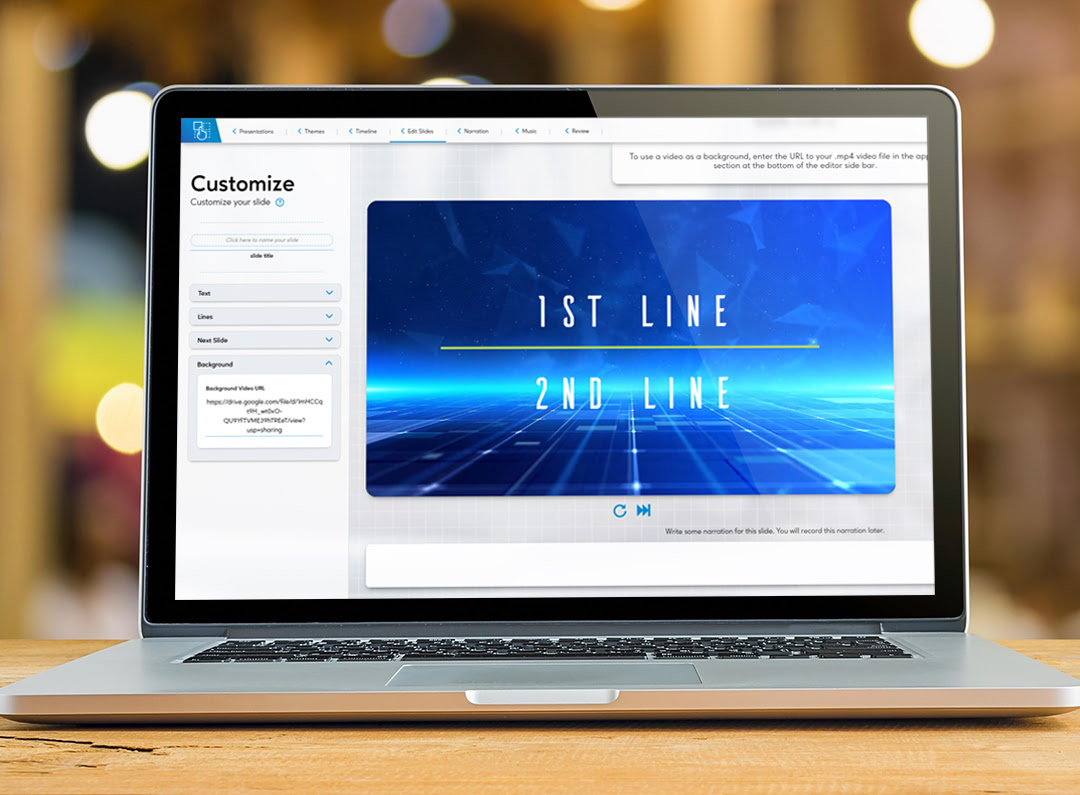
Using Background Videos in your myiDecide #
Bring your presentation to life with engaging background videos. Anytime you have text on screen for a long period of time or button choices for the viewer to click, adding a background video is a great way to add movement on screen to keep the viewer interested.
Video Preparation #
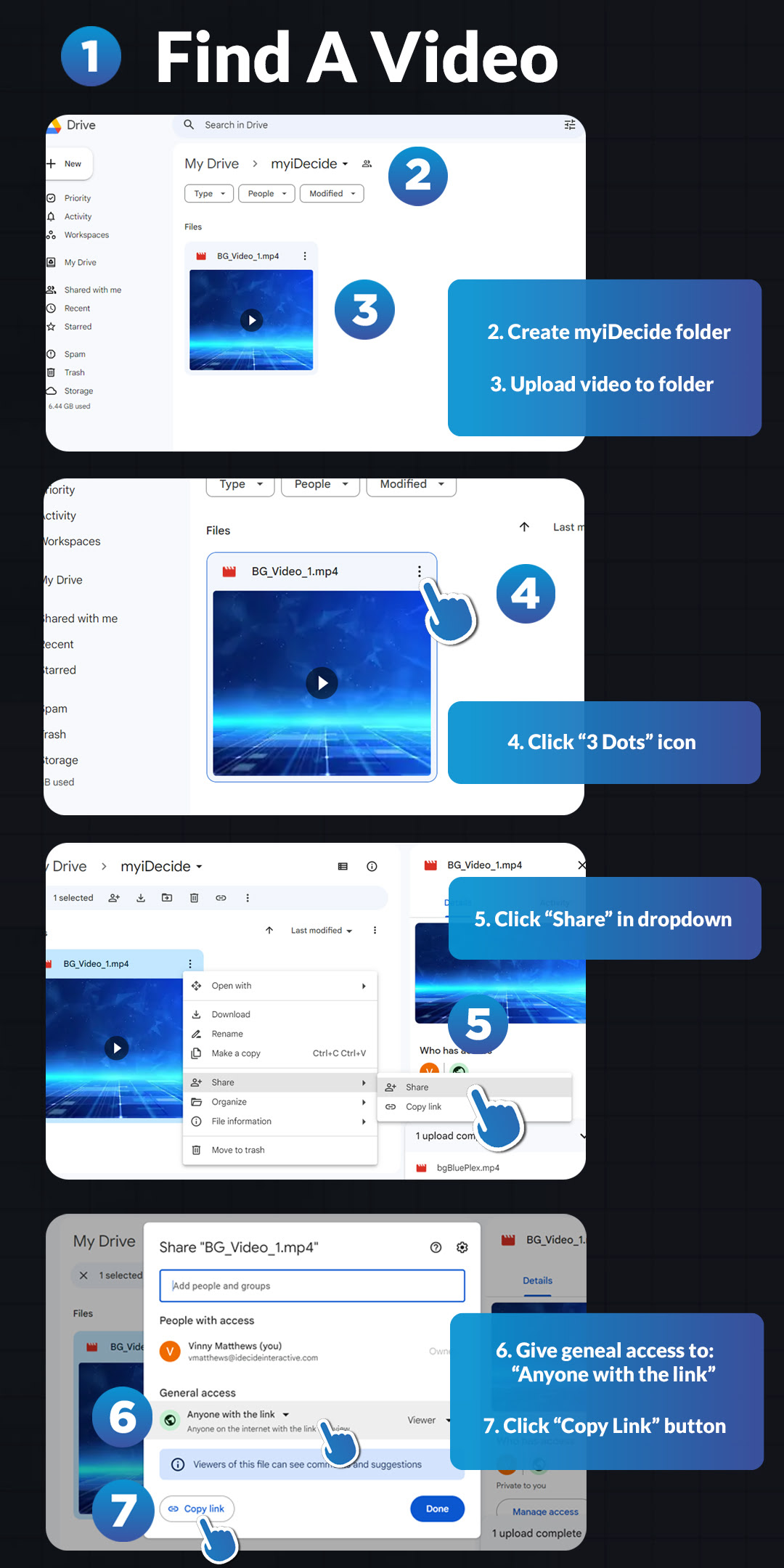
You are only able to add videos as a background by attaching a Drive link. We do not currently support .mp4 video files. Here is how you can select a royalty free video, add it to a Google Drive, and get the link to add to your presentation.1) Find a video! If you are struggling to find one, we recommend pexels.com for royalty free options.
2) Create a Folder on your Google Drive titled “myiDecide.” Let’s keep this organized! Use this folder for all of the background videos you'd like to use in your presentations.
3) Upload your desired .mp4 video(s) to your Google Drive folder labeled “myiDecide.”
• Recommended video parameters:
• mp4 File Format (required)
• 1280p x 720p
• 10-30 seconds long
• Less than 15mb 4) After uploading is complete, click the 3 dots icon in the top right of the uploaded video 5) Hover over the “Share” tab, then click the “Share” button in the dropdown. 6) Give general access to “Anyone with the link” can view 7) Click the “Copy Link” button
Add Video Background Slides #
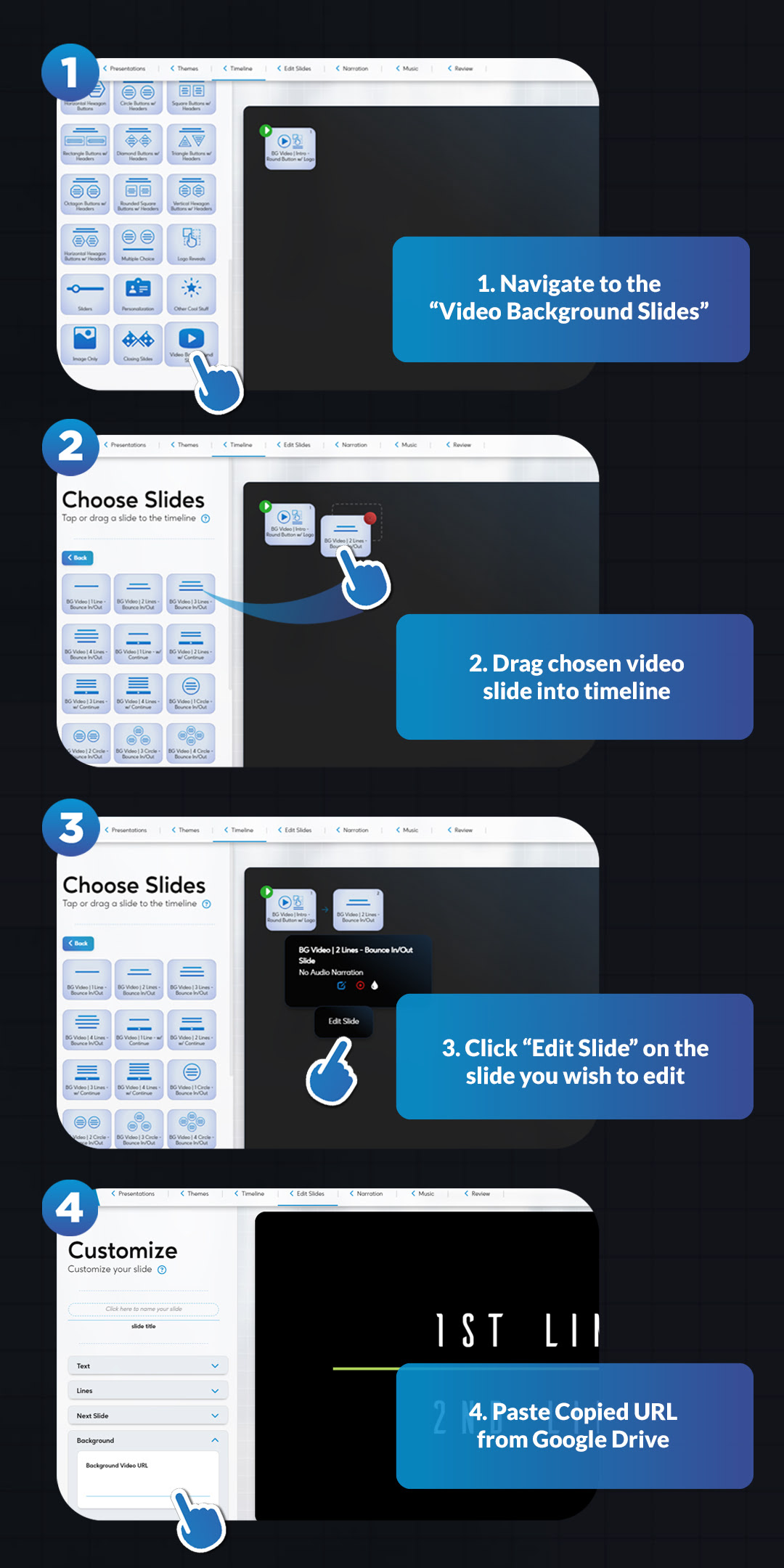
Not all slides are compatible with background videos. To see the available slide types, visit the Video Background Slides category on the timeline. Here's how to add the Video Background Slide and video link.1) Navigate to the timeline and click “Video Background Slides” on the left side of your screen.
2) Drag your desired slide type into the timeline on the right side of your screen.
3) Hover over the slide and click “Edit Slide."
4) Navigate to the bottom section labeled “Background” and paste the URL from your Google Drive. (Youtube, Vimeo, Facebook, Instagram, tiktok, & etc. links will NOT function as background videos)
5) Done! Watch your presentation come to life and draw viewers in.
Recommended 3rd Party Assets #
pexels.com - For Royalty Free Videos unsplash.com - For Royalty Free Images freeconvert.com - Video Compressor freeconvert.com - MP4 Video Converter