
The app sends two kinds of links. A Personalized Link puts your contact’s name into the presentation for you, and a Lead Capture Link asks the viewer for their name and email before it starts. Send Personalized Links to people you know, which is almost always.
Send a Personalized Link #
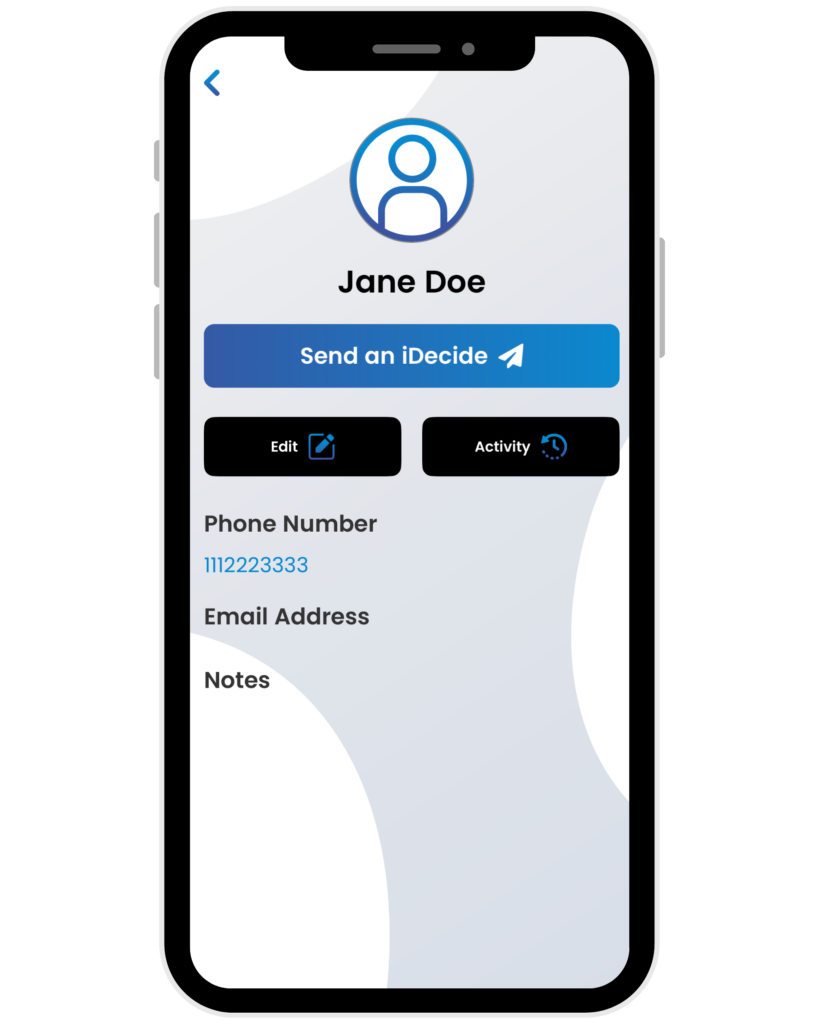
- Open your Contacts and tap the person you want to send to. If they are not saved yet, tap Add Contact and enter their information.
- Tap Send an iDecide.
- Choose the presentation from the pop-up, and choose the language if more than one is available.
- Pick how you want to send it. Text Message opens your messaging app, Autres shows the sharing options on your device, and Copy to Clipboard saves the link so you can paste it anywhere.
- Paste the link into your message and send it.
Create a Lead Capture Link #
- Tap Lead Capture.
- Tap Create Lead Capture Link.
- Select the presentation you want to post.
- The link is copied to your clipboard. Paste it into a post, a bio, a website, or an email.
- To share it straight from another app on your phone, tap Share Link.
Personalized Links get the highest open rates by a wide margin. Send those directly to prospects whenever you can. A Lead Capture Link makes the viewer enter their information first - we add their information to your contact list, but the open rate will decrease. Use Lead Capture for social media, websites, and anywhere you are sharing with a crowd rather than a person.
iDecide does not send the link for you. We are not a messaging platform. You copy the link and send it from your own app.
Sending from a web browser instead? See Sending a Personalized Link et Sending a Lead Capture Link.
