
This walkthrough builds one complete automation: you add a contact, iDecide creates a personalized link for them, and the presentation goes out by email. No manual steps after setup.
We use a Google Sheet here as a stand-in CRM, because it is something everyone can follow along with. Anywhere you see Google Sheets, picture your own CRM. The layout and iDeas are the same.
Watch it built live #
Before you start #
- A Zapier account, connected to iDecide. See How to Connect iDecide to Zapier.
- A sheet or CRM with columns for first name, last name, email, phone, and an empty column for the personalized link.
- At least one row of real-looking test data. Zapier uses it to show you your own data while you build, which makes every later step easier.
Google SHeet Headings In this sample: #

Zap 1: create the link #
- In Zapier, click Create, then Zap. Name it something you will recognize later.
- Trigger: choose Google Sheets (or your CRM) and the event New or Updated Spreadsheet Row.
- Connect your account, then pick the spreadsheet and worksheet. Set the trigger column to email, so the Zap fires whenever a new email is added (be careful of looping - see Zapier support for more help).
- Click Test trigger. Your test row appears. Choose Continue with selected record.
- Action: search for iDecide and choose Create Personalized iDecide Link.
- Fill in the viewer fields using the plus sign to pull data from step 1. For the full name, insert first name, type a space, then insert last name.
- Map the CRM-specific ID from your CRM's own ID field. This connects the iDecide link to the contact in your CRM. Skip this only if you are following along with a plain Google Sheet.
- Choose the presentation you want to send, then test the step. Open the link it returns. It should greet your test contact by name.
- Second action: add Google Sheets again, event Update Spreadsheet Row. Point it at the same sheet, and map the personalized link into your empty link column.
- Test, then Publish.
Watch the row field. When you set up the update step, Zapier often fills the row field with a fixed number like "2". If you leave it that way, every run will overwrite that same row forever. Click the field, choose
+plus sign to reference dynamic data, and pull the row or record ID from your trigger step instead. If you are using a real CRM, this is the record ID field.
Zap 2: send it #
Zapier free plan caps how many steps one Zap can hold, so the send step lives in its own Zap.
- Create a second Zap.
- Trigger: Google Sheets, New or Updated Spreadsheet Row, with the trigger column set to your personalized link column. Now the Zap fires as soon as a link exists.
- Test the trigger and continue with the record it finds.
- Action: choose how you want to send. Gmail, your CRM email tool, even a texting platform. Anything Zapier connects to.
- Write the message. Pull in the contact first name and the personalized link with the plus sign.
- Test, then Publish.
Sample Email Using Dynamic contact information: #
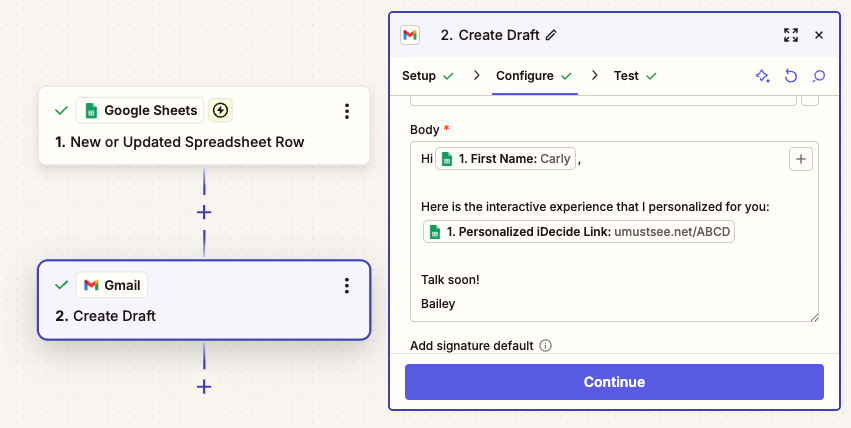
Test with drafts first. If you are sending through Gmail, set the action to Create Draft instead of Send Email while you are testing. Check a few drafts, then switch it to send once you are happy with how they read.
Swapping in your CRM #
Everything above works the same with any app Zapier supports. Three things change:
| The apps | Replace Google Sheets with your CRM in both Zaps. The trigger and action events on offer will look different, because they are whatever your CRM allows, not whatever iDecide allows. |
| The field names | Your CRM's own field names replace the sheet column names. The iDecide side does not change. |
| The record ID | Map your CRM contact ID into the CRM-specific ID field. This is what links the view back to the right contact. |
Using GoHighLevel? Do not route it through Zapier. iDecide integrates with GoHighLevel directly. Email Hi@iDecide.com and we will set it up for you.
Something not firing? See Zapier Questions and Fixes.
Still stuck? Email Hi@iDecide.com. We also run live Zapier trainings, and you can see the schedule at iDecide.com/training.
