
There are two ways a company can set languages up, and what you see depends on which one your company chose. Either you pick a language specific presentation from the Presentation dropdown, or you pick one presentation and then choose a language.
Setup 1: one presentation per language #
Each language is its own presentation, with the language in the title. When you create a link, choose the presentation in the language you want from the Presentation dropdown, then send it as usual.
Setup 2: one presentation, several languages #
- Select the presentation from the Presentation dropdown.
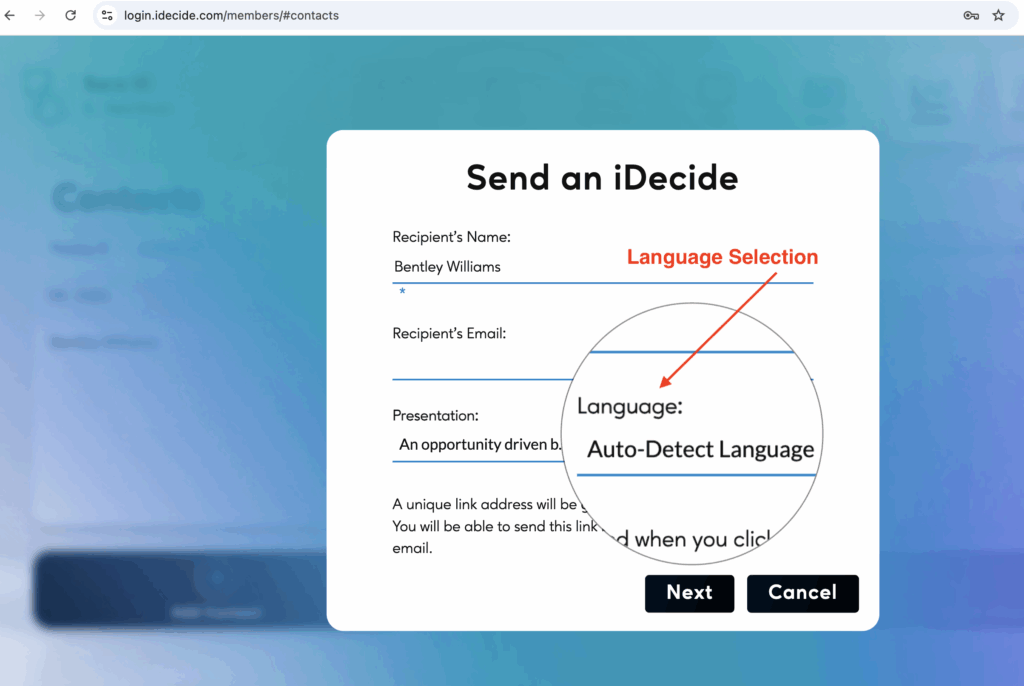
- A Language Selector appears.
- Choose a specific language, or choose Auto-Detect Language.
Pick a specific language and the presentation always plays in that language. Pick Auto-Detect and we choose for the viewer based on their own browser settings.
What Auto-Detect Language does #
- We read the viewer's browser language settings.
- If your presentation exists in that language, that is what plays.
- If not, we try the next closest match from their settings.
- If there is no close match, it plays in English.
- This is great for general purpose sending or Lead Capture links for social media where multiple people see the same link.
When to choose the language yourself: Auto-Detect follows the device, not the person. If you know your prospect reads Spanish but works on a company laptop set to English, select Spanish directly.
