
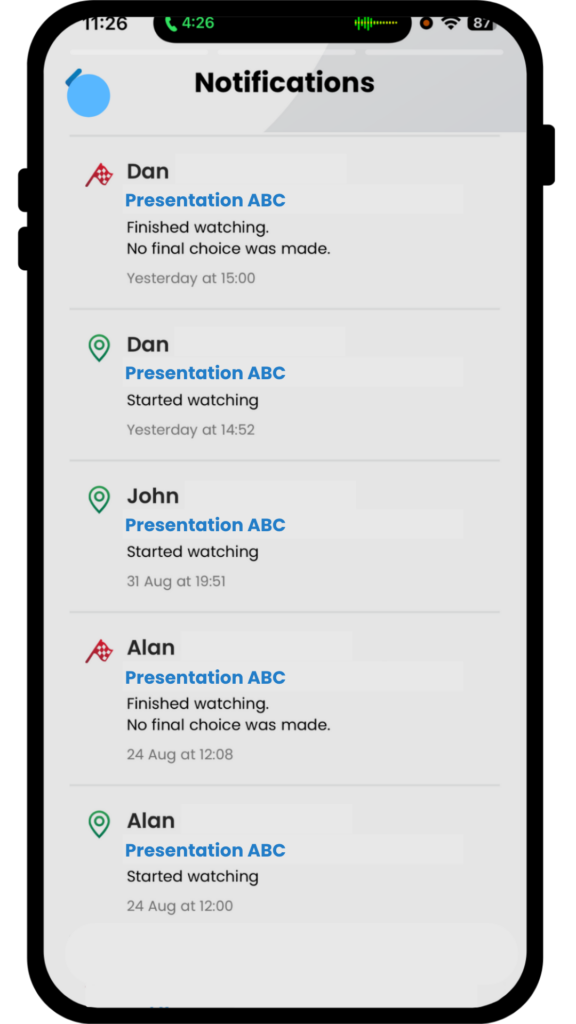
A notification only fires after the viewer taps Play to start the presentation. If they open the link and never press Play, nothing is sent. If you know someone started watching and nothing arrived, work through the checks below.
Work through these in order #
- Check your contact information. Open ACCOUNT in your iDecide Back Office and confirm your email address and phone number are entered correctly.
- Check spam or junk. Look for the notification there, then add our email address to your contacts so future ones land in your inbox.
- Make sure you clicked Close. After choosing how you want to be notified, click Close to save that choice - don't just close the browser window.
- Check your email provider. Some corporate providers, and free ones like Yahoo and Hotmail, block these notifications. If that is happening, use a different address for alerts. You can change it in the Account section.
- Turn on notifications in the app. Notifications on your phone come through push notifications on the free iDecide app. Install it, sign in with your existing account, open the gear icon in the upper right corner to reach Settings, and choose Activate Notifications.
For quickest update notifications, download the iDecide app. A push notification arrives the moment the viewer taps Play, and it does not depend on your email provider letting it through.
Related: Viewing Contact Activity and How to Get the App.
