
When a viewer watches a presentation you sent, iDecide can give Zapier everything it knows about that view. This page lists every trigger, action and field, so you know exactly what you can map into your automations.
New to this? Start with How to Connect iDecide to Zapier.
Triggers: what starts your Zap
Use an iDecide trigger when you want your Zap to receive information on a viewer’s activity - including what they watched, the choices they made, and how they answered questions.
| iDecide Finished | Fires when a viewer reaches the end of your presentation or abandons it partway through. Either way you get their choices up to the point they stopped. This is the safest trigger for most automations. |
| Post A Link Started | Fires when someone opens a Post A Link, the generic link you post publicly. iDecide now calls these Lead Capture Links, but the Zapier integration still shows the older wording. Use this to capture the contact details they enter, but note that you will not get the choices they make later in the presentation. |
Actions: what iDecide can do for you #
Use an iDecide action when you want Zapier to automatically create an iDecide link for a contact and send or save it through another app.
| Create Personalized iDecide Link | Generates a link with your contact's name already in it, so there is no form to fill out before watching. This is the action you want in almost every automation. |
| Create Post A Link | Builds a generic link that anyone can open. It shows the viewer a contact form before watching, then we add their information to the presentation and to your contact list. Useful for social posts and landing pages. |
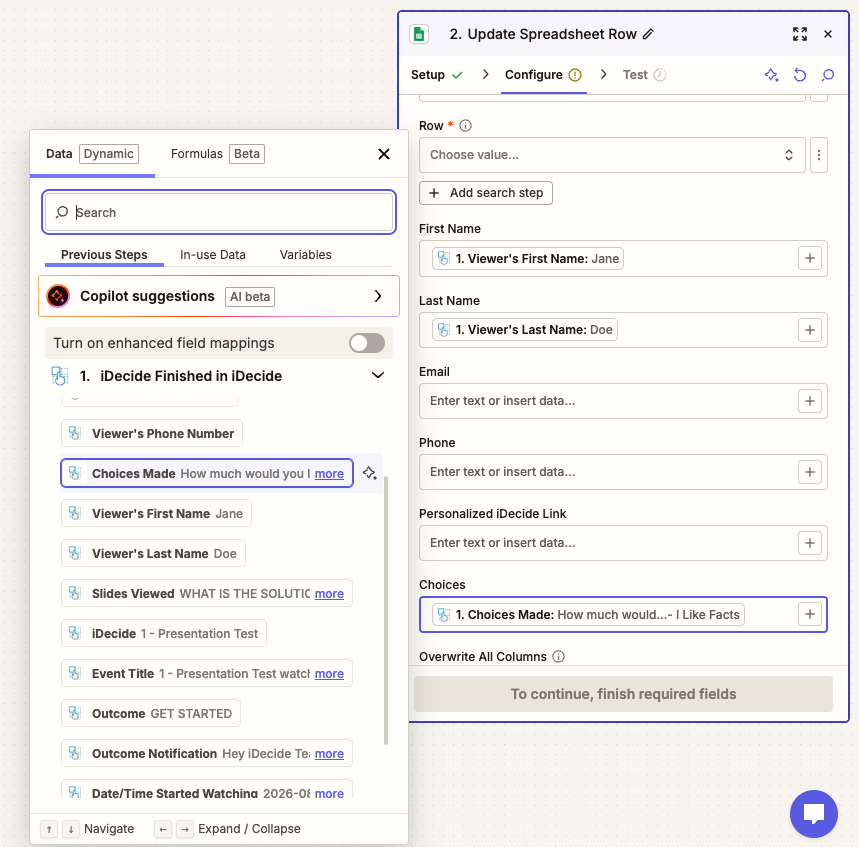
FIELDS PROVIDED BY THE iDECIDE FINISHED TRIGGER #
When you use iDecide Finished as your trigger, iDecide provides the following fields to use in the Action steps of your Zap. Here’s what each data point includes and means.
| ID | The viewer's unique view ID. |
| iDecide | The name of the presentation you sent. |
| Date/Time Started Watching | An accurate timestamp for when the viewer opened your link. |
| Was Post-A-Link | Says "true" if the link was a Post A Link (Also called a Lead Capture Link) rather than a personalized one. Useful for telling public traffic apart from contacts you sent to directly. |
| Viewer Full Name | The viewer's full name. You can also map first name or last name on their own. |
| Viewer Email Address | The viewer email, if one was provided. |
| Viewer Phone Number | The viewer phone number, if one was provided. |
| Viewer CRM-specific ID | The ID your CRM uses for that contact. This is what tells your CRM which record to update, so map it whenever you are writing data back. See the note below. |
| Choices Made | Every tracked question the viewer answered. |
| Slides Viewed | Which parts of the presentation they actually watched, so you can follow up on what they cared about. |
| Outcome | How they chose to move forward at the end. Book a call, buy, visit your website, apply, and so on. |
| Outcome Notification | The same finish notification we text or email you. Handy for forwarding to a teammate so they can respond. |
| Event Title | A short description of what caused the action. Useful for pinpointing where a contact sits in your pipeline. |
The field people miss: Viewer CRM-specific ID. Without it, a Zap that writes data back has no way to know which contact it belongs to, and it will either fail or overwrite the wrong record. If your trigger is a real CRM like HubSpot or Pipedrive, find that CRM's own ID field in the trigger step and map it here.
Building your own presentations? Choices only reach Zapier if you turn them on. In the myiDecide builder, each button has a Track Choice toggle. If it is off, that choice is never passed along, and Choices Made will come through empty. Turn it on for every choice you want to see, and leave it off for buttons that just move people forward.
Next: Example: Automating Your Presentation Sends to see these fields mapped in a real workflow.
Still stuck? Email Hi@iDecide.com. We also run live Zapier trainings, and you can see the schedule at iDecide.com/training.
