The Toolbar
In this section, we’ll explore the Toolbar and show you how to use it to create your most engaging and interactive presentation yet.
Slide #
Here, you can name your slide, add personal notes, and set how the slide should auto-advance — either to the next slide in sequence or to a specific slide. You can also designate the slide as a Menu Slide and choose whether the ปุ่มเมนู appears during the presentation.
Quick Tip: Naming your slides makes it easier to choose where buttons and slides should go. It also improves your analytics by helping you see exactly where viewers stop watching.

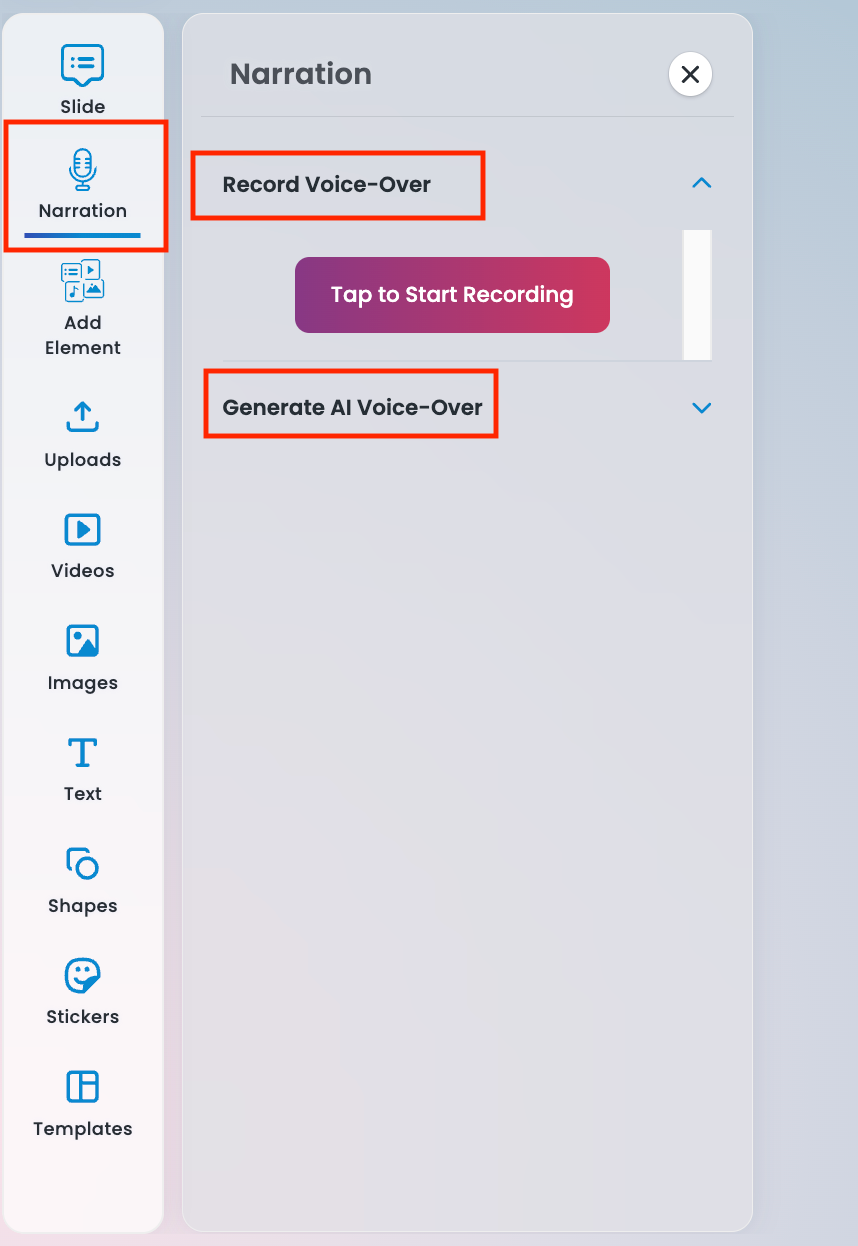
Narration #
Here, you can record your own audio, upload pre-recorded files, or use our AI Voiceover feature to generate narration quickly and easily.
This gives you the flexibility to choose the voice and workflow that best fits your presentation.
You can learn more about Narration in our Using Narration Knowledge Base Article.
Add Element #
Looking to add something to your presentation? We’ve got you covered. Whether you’re searching for audio, stock images and videos, sliders, logo reveals, or customizable form fields for viewers to enter their information, this is the place to find it all.
Quick Tip: Use the search feature to quickly find the perfect stock image or video and avoid feeling overwhelmed by all the options.


Uploads #
Want to upload your own assets? Click Uploads, then select Add File to start adding your images, videos, and audio to your presentation.
This makes it easy to incorporate your own branding, custom visuals, and unique content so your presentation truly reflects your message and style.
Videos & Images #
Want to browse only videos or images? Simply select the corresponding option to filter your view and quickly narrow down your results.
You’ll be able to see your uploaded assets alongside our library of stock videos and images, making it easy to find exactly what you need in one place.
This helps you stay organized, save time, and focus on choosing visuals that best support your message and bring your presentation to life.


Text #
Text boxes make it easy to place custom text anywhere in your presentation. Whether you’re adding headlines, callouts, captions, or supporting details, text boxes give you the flexibility to communicate exactly what you want, exactly where you want it.
It’s a simple but powerful way to guide your viewers’ attention and keep your presentation clear, engaging, and on-brand.
Shapes #
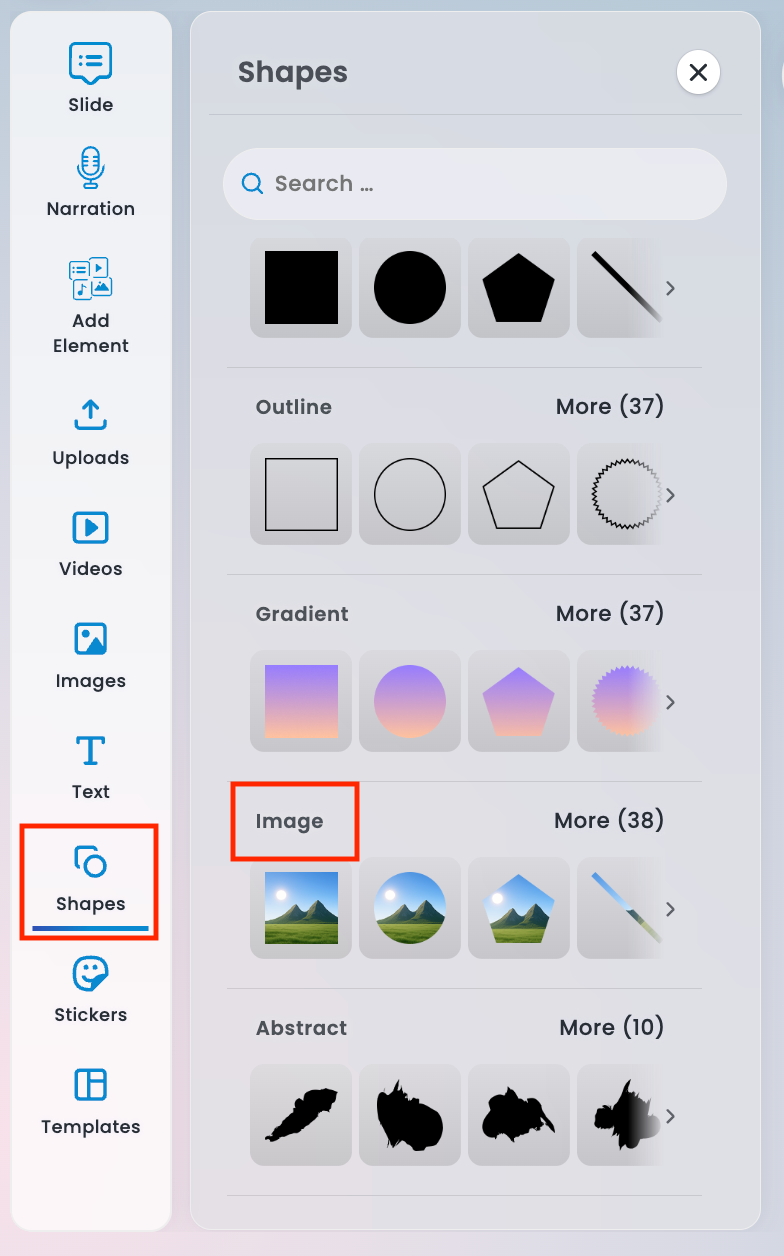
Looking to add some visuals? Shapes offers a wide variety of options to help bring your presentation to life, including solid-filled shapes, outlines, gradient shapes, abstract designs, and image shapes. These elements are perfect for highlighting key information, creating visual separation, or adding personality to your slides.
Quick Tip: Image Shapes are a great way to make your visuals more engaging by framing images within stylish shapes and helping them stand out on the screen.

Stickers #
We get it — sometimes the best way to express something is with stickers! That’s why we offer a fun collection of emojis, emoticons, and doodles to help bring personality and energy to your presentation.
Use them to highlight key moments, add emotion to your message, or simply make your slides feel more engaging and approachable. Small visual touches like these can go a long way in making your presentation feel more human, memorable, and enjoyable for your viewers.
Templates #
Suffering from a creativity block? Short on time? Not sure where to start? Check out our templates! They’re designed to give you a strong starting point so you can create a polished, engaging presentation faster.
You can also learn more about each template and the best ways to use them to fit your goals by visiting our Slide Templates Knowledge Base article.

 ไทย
ไทย  English
  Français
  Deutsch
  Italiano
  Español de México
  简体中文
简体中文  繁體中文
繁體中文  香港中文
香港中文  Čeština
  Русский
  한국어
한국어  日本語
日本語  Türkçe
  Română
  Português
  Dansk
Dansk  Magyar
  Norsk bokmål
  Polski
  Svenska
  हिन्दी
  Tagalog