
The Toolbar runs down the left side of the editor. It holds everything you can add to a slide: Slide, Narration, Add Element, Uploads, Videos, Images, Form Fields, Text, Shapes, Stickers and Templates.
Slide #
Name your slide, add notes for yourself, and set how it auto-advances (either to the next slide in sequence or to a specific slide). You can also designate it a "Menu Slide," which appears as a dropdown menu in the top right corner of the presentation, and choose whether the Menu Button appears throughout the presentation.
TIP: Name your slides. It makes choosing button and slide destinations far easier, and it makes your analytics readable, because you can see exactly where viewers stopped watching.
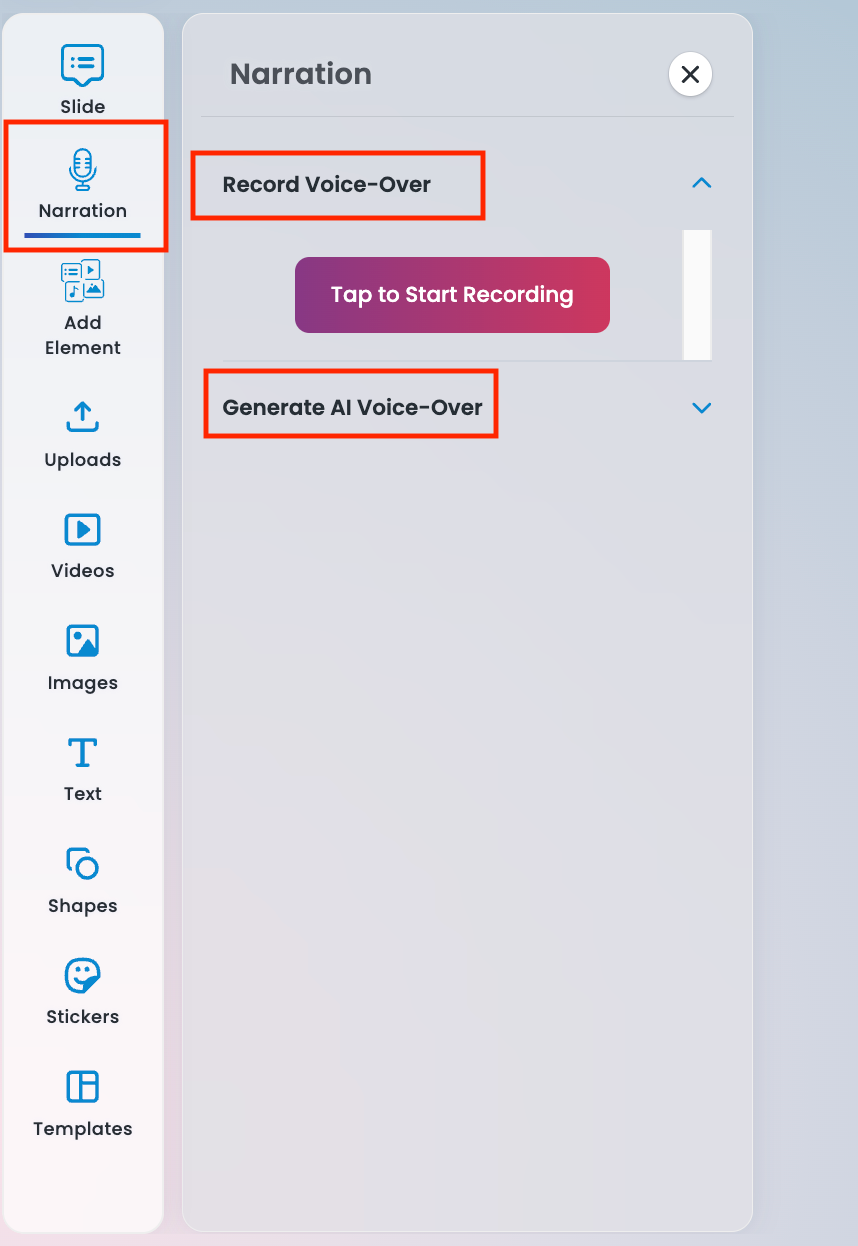
Narration #
Record your own audio or generate an AI voiceover. To upload a file you already have, click Add Element and use the Audio Upload feature.
Add Element #
The full library of things you can drop onto a slide:
- Upload Videos, Images, and Audio: your own files
- Stock Images: thousands of free stock photos
- Stock Videos: royalty free footage, great for background videos
- Dynamic Images: a profile image placeholder that pulls in the sender's own picture from their iDecide Back Office. When a company's reps each have their own subscription, every rep's photo appears automatically without editing the presentation for each person.
- Text Boxes, Shapes and Stickers
- Sliders: "On a scale of 1 through 10..."
- Logo Reveals: rub your screen to reveal the image behind it
- Embeds: a live website inside your presentation
- Form Fields: so viewers can enter their information
Uploads #
Click Uploads, then Add File to bring in your own images, videos, and audio. This is where your branding and custom visuals go.
Videos #
Images #
Filter your view to images you've upload or select from thousands of available stock images. You see your own uploads alongside our stock library in the same place.
Form Fields #
Add customizable fields for viewers to fill in during the presentation. Turn on Track Choice to reference their actual answers throughout the presentation using the personalization feature!
Text #
Place custom text anywhere: headlines, callouts, captions, supporting detail.
Shapes #
Solid shapes, outlines, gradients, abstract designs and image shapes. Image Shapes frame a photo inside a shape, which is the quickest way to make a plain image look designed.
Stickers #
Emojis and doodles, for when a slide needs a bit of personality.
Templates #
Pre built slides to start from when you are short on time or stuck. See Slide Templates.


Tip: Use the search inside Add Element rather than scrolling the stock library. There are thousands of images and videos, and browsing them is the fastest way to lose an afternoon.
