
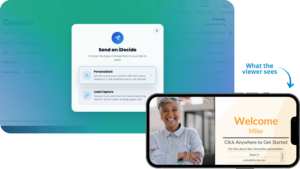
A Personalized link puts your contact’s name right into the presentation, so there is no form for them to fill out before watching. It is the best-performing way to send to someone you know.
Steps #
- From your dashboard, click Send an iDecide.
- Choose Personalized.
- Pick your Contact from the dropdown. Start typing to search. Not saved yet? Click + Add Contact.
- Pick your Presentation. If it comes in more than one language, choose the language version here.
- Click Next.
- Choose how you want to hear about views: Send me email updates or Send me mobile updates. Mobile requires the iDecide app.
- Click copy to clipboard to grab the ready-made message, or copy just the link below it.
- Paste it into a text, email, Messenger, or WhatsApp, wherever you already talk to that person.

Good to know: iDecide does not send the link for you. You paste it into your own messaging app. The message box comes pre-filled with your default message, and you can edit it before you copy.
Need the generic version for social media or a landing page? See Sending a Lead Capture Link.
