There are two types of iDecide links you can send: Personalized et Post a Link. It’s important to understand the difference before you begin.
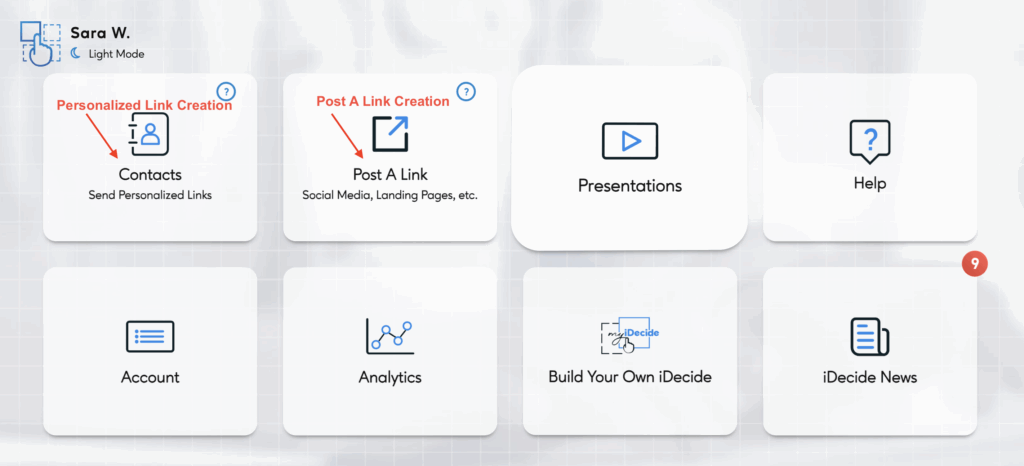
Personalized Link #
A Personalized link adds the viewer’s name directly into the presentation without asking them to enter anything. To send one:
-
Click the Contacts tab.
-
Select your contact’s name.
-
If they aren’t saved yet, click Add Contact and enter their information.
-
-
Choose the presentation you want to send from the dropdown.
-
If multiple languages are available, select the language.
-
-
Click Next.
-
Choose whether you want to be notified by text or email.
-
Copy the unique link and paste it into your preferred messaging platform.
Tips:
-
Don’t forward this link to anyone else — the viewer name will stay the same.
-
We HIGHLY recommend sending Personalized Links directly to prospects. They consistently deliver the highest open rates and best results.
-
iDecide is not a messaging platform and will not send links on your behalf. You must copy/paste the link into your own channels (email, Messenger, WhatsApp, etc.).
-
We’ll generate a default message with the URL, the URL alone, embed code, and a QR code so you can share it however you prefer.
Post a Link #
A Post a Link creates a generic link that prompts the viewer to type in their name and email before starting. Their information is then automatically added to your presentation and your Contacts. To create one:
-
Click the Post a Link tab.
-
Select the presentation you want to post and click Next.
-
Choose how you’d like to be notified — email or text.
-
Copy the generic link and paste it into your social post or wherever you plan to share it.
Tips:
-
Because viewers must enter their information, open rates are significantly lower. We recommend using this option only for social media, websites, or general sharing.
-
To improve open rates, include a short message explaining that their info is private and that they’ll get an interactive experience unlike anything they’ve seen before.
-
As with Personalized Links, we’ll generate a default message, the URL alone, embed code, and a QR code to make sharing easy.
Downloading the iDecide Interactive app makes sending iDecides even easier. Click HERE for steps to download the app and start sending.
 Français
  English
  Deutsch
  Italiano
  Español de México
  ไทย
ไทย  简体中文
简体中文  繁體中文
繁體中文  香港中文
香港中文  Čeština
  Русский
  한국어
한국어  日本語
日本語  Türkçe
  Română
  Português
  Dansk
Dansk  Magyar
  Norsk bokmål
  Polski
  Svenska
  हिन्दी
  Tagalog