
You can change any myiDecide presentation in your account by asking in plain words, like "make the welcome headline shorter." The AI iDecide Builder makes the change in your presentation and tells you what it did.
Ask for a change #
- Open the presentation you want to edit in the myiDecide Builder and keep that tab visible. The AI only edits the presentation you have open.
- In the side panel, get to the edit screen one of two ways:
- Right after a build: click Ask for changes on the finished screen.
- Any time: click the Edit tab at the top of the panel. This works for any presentation in your account.
- Type what you want changed and send it.
- The panel replies with exactly what it changed.
Where To Find the Edit Option #
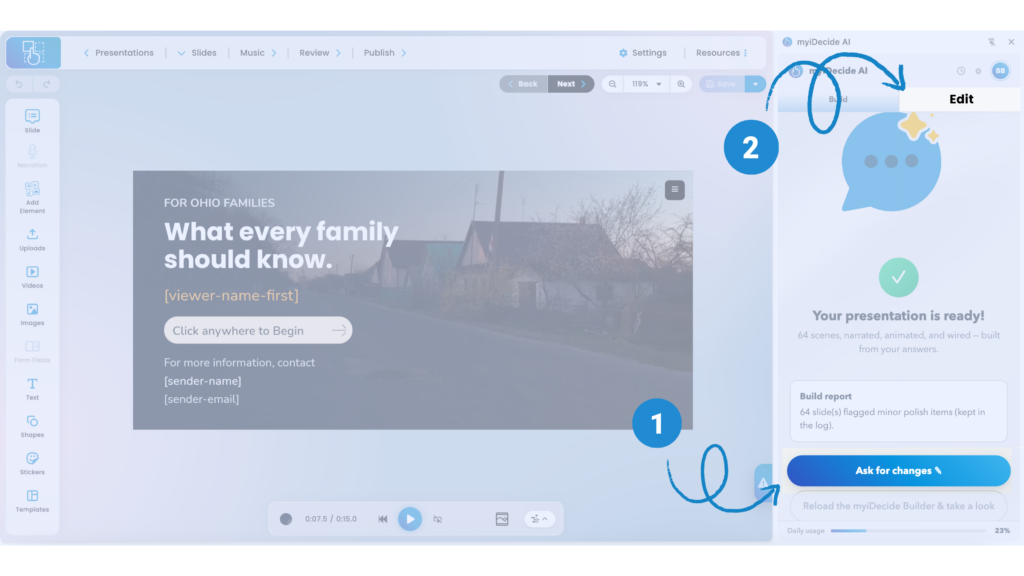
1. Ask for changes after a build. 2. The Edit tab, any time.
Keep typing while it works #
You can send more requests while a change is running. They wait in line and run in order. Click Stop to halt the change in progress. Anything already applied stays.
Add your own pictures, videos or documents #
Click the paperclip next to the message box to attach files to your request. You can attach up to six files at a time, and videos must be under 96 MB. If a document has no readable text, like a scanned PDF, save it as a Word document (.docx) or text file first.
Edit the script #
To change the wording of the whole presentation, open History, click Edit script, make your changes, then rebuild. Leave a slide's narration empty to make that slide silent.
Presentations you built by hand #
You can ask for changes to slides you built yourself, but the AI iDecide Builder won't redesign a slide it didn't create.
Tip: Name the slide and the exact item you want changed. "Change the button on the Pricing slide to say Book a Call" works much better than "fix the button."
