
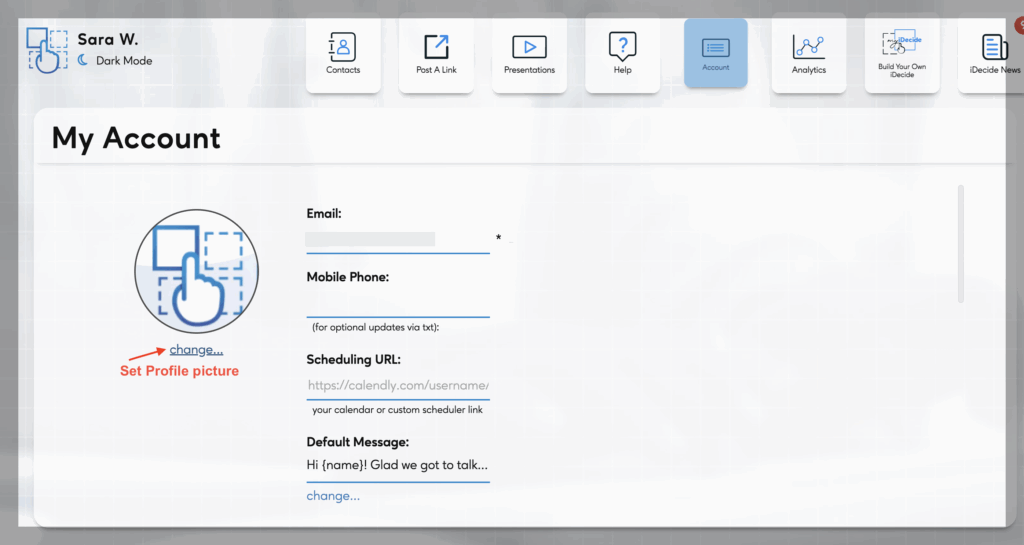
Almost everything about your account lives on the ACCOUNT tab of your iDecide Back Office. Log in, click Account, and you can update your profile picture, scheduling link, default message, billing, or sign out.
What is on the Account tab #
- Profile picture
- Scheduling URL
- Default Message
- Update Billing
- Notification preferences
- Sign out, at the bottom of the page
Profile picture #
Some companies configure their presentations to show the sender's picture. Click Change under the profile picture section, then drag and drop an image or upload one.
Scheduling link #
Paste your Calendly or other scheduling link into the Scheduling URL field. Presentations that let a viewer book time with you use this link, so it is worth setting even if you do not think you need it yet. If no scheduling link is added, we show your viewer a standard contact form and include their entries in your Finished Notifications.
Default message #
Sets the message that prepopulates with your links so you are not retyping it every send. See Setting a Default Message.
Billing #
Update Billing lets you update payment information or change subscription options. See Updating Payment and Managing Your Subscription.
Signing out #
Scroll to the bottom of the Account tab and click the Logout option.
Changing your language #
Your Back Office language is set on the login page, not on the Account tab. Go to Login.iDecide.com, signing out first if you are already in, and use the language dropdown beneath the password field.
This changes only what you see in your own login page and Back Office. It does not change the language of any presentation or anything your viewers see. For that, see Sending Presentations in Other Languages.
Tip: Set your profile picture and scheduling link on day one. Both get pulled into some presentations automatically, and a presentation that goes out with a missing photo or no booking link is a lead you end up chasing by hand.
