Recording Narration #
Click Narration in the left-hand menu, then select Tap to Start Recording. When finished, click Tap to Stop Recording and review your audio using the Play button. You can record as many takes as needed. Once you’re happy with a version, click Select to add it to your slide.
Quick Tip: Some devices may ask for microphone access. Select Allow to enable recording in the myiDecide Builder.


Using Pre-Recorded Audio #
Already have the audio you need previously recorded? Using existing audio is simple.
Select Uploads from the Toolbar and click Add File.
Using AI Narraition #
Don’t feel up to recording audio? No worries! It’s now easier than ever to use AI for your voiceover.
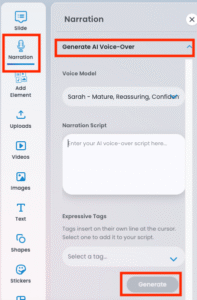
Just choose Generate AI Voice-Over and select a voice model that best expresses your brand.
Enter your script and click Generate. Onced generated, review the result. If like what you heard, click Select to add the narration to your slide.
Quick Tip: Use Expressive Tags to fine-tune tone and inflection to express your message.
 简体中文
简体中文  English
  Français
  Deutsch
  Italiano
  Español de México
  ไทย
ไทย  繁體中文
繁體中文  香港中文
香港中文  Čeština
  Русский
  한국어
한국어  日本語
日本語  Türkçe
  Română
  Português
  Dansk
Dansk  Magyar
  Norsk bokmål
  Polski
  Svenska
  हिन्दी
  Tagalog