
You have three ways to add narration to a slide: record it yourself, upload audio you already have, or generate an AI voiceover.
Record your own #
- Click Narration in the left hand menu.
- Select Tap to Start Recording.
- Click Tap to Stop Recording when you are done.
- Review it with the Play button. Record as many takes as you need.
- Click Select to add the take you want to your slide.
Some devices ask for microphone access the first time. Choose Allow.
Generate an AI voiceover #
- Choose Generate AI Voice-Over.
- Pick a voice model that best expresses your brand.
- Enter your script and click Generate.
- Review the result. If you like it, click Select to add it to your slide.
Upload Audio You Already Have #
1. From the left-hand toolbar, select Uploads.
2. Under Audio Uploads click Add File.
3. Select the .mp3 file you'd like to upload.
4. You can also drag an audio file straight into the browser.
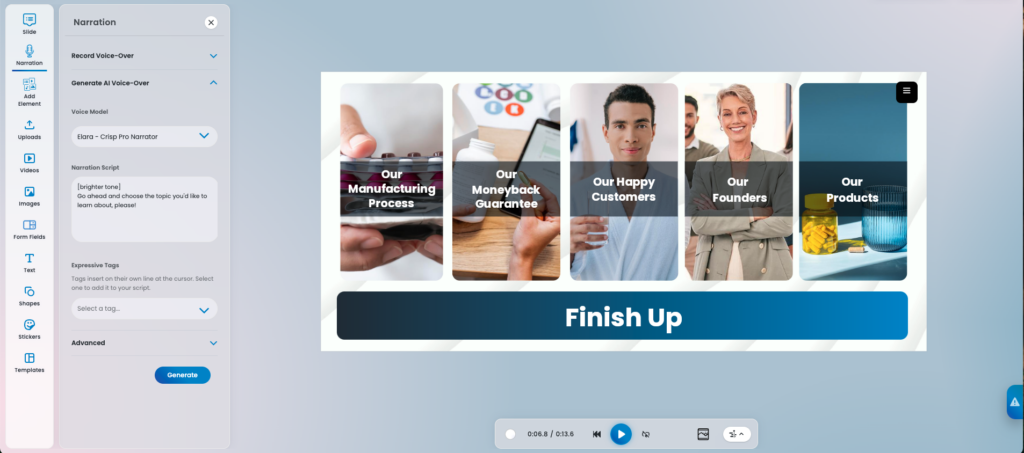
Tip: Use Expressive Tags in your AI script to control tone and inflection. A flat, evenly paced read is what makes an AI voice sound like an AI voice.
