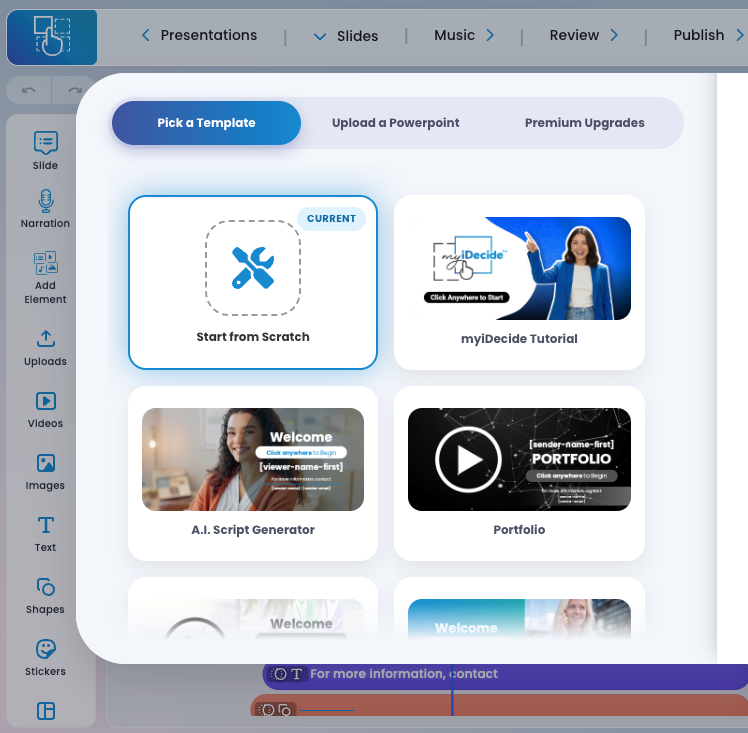
What is myiDecide? #
Meet the New myiDecide — Our Best Yet!
Build dynamic, interactive presentations in minutes with our easy drag-and-drop builder—even easier than PowerPoint.
Add menus, music, voiceovers, and even the viewer’s name inside the presentation for a customized experience.
✅ Unlimited myiDecide presentations are INCLUDED with your iDecide Pro subscription.
What is iDecide Custom? #
Want it built for you? With iDecide Custom, our done-for-you upgrade, our pro design team creates your entire presentation—fully branded to your company. Provide your script (up to 2,500 words) or answer a few questions and we’ll write it for you. We’ll design it, add it to your account, and include 1 hour of free edits. After delivery, you can easily make future edits anytime yourself using the myiDecide platform. ⏱ Turnaround time: about 2 weeksPlease visit the Pricing tab on our website to see a feature breakdown.How do I upgrade my presentation? #
If you need a little help building your myiDecide presentation, you can easily upgrade one of your presentations to an iDecide Custom and have one of our iDesigners take your AI driven, interactive presentation to the next level! STEP 1: Once you are logged into the myiDecide Builder, click the "Resume an Existing Presentation" button to see a list of your myiDecide presentations. STEP 2: Find the myiDecide presentation from your list that you would like to upgrade and click on the blue "Need Help Building?" button below the title of your presentation. STEP 3: Fill in your credit card information and click the "Purchase" button at the bottom to finish purchasing your presentation upgrade.
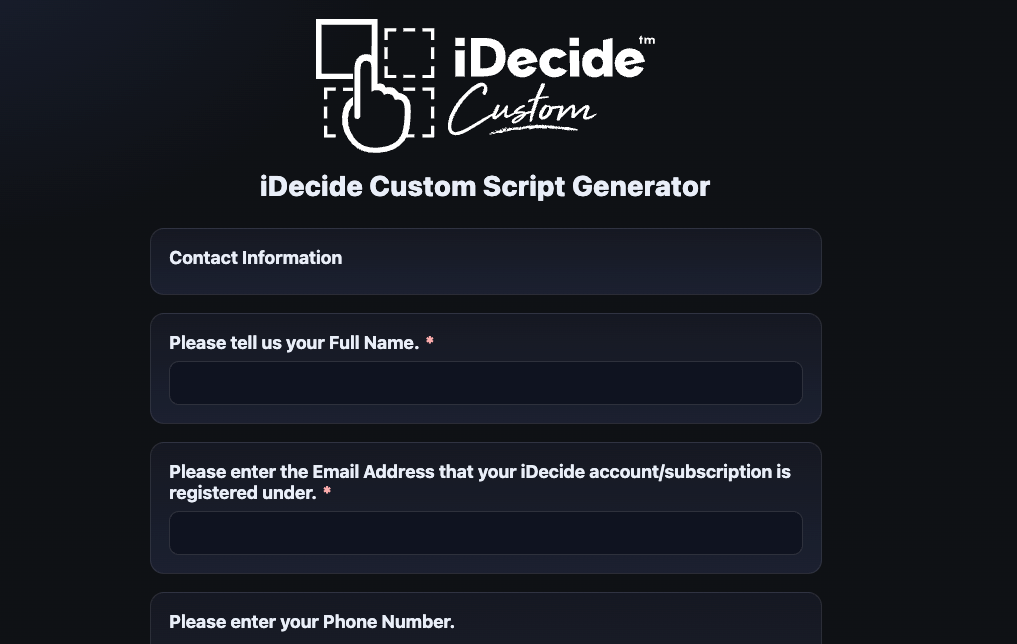
 STEP 4: Once you have completed your purchase, you will be asked to fill out a quick questionnaire to help us build the perfect presentation for you. We will automatically be notified when you finish your questionnaire and will assign an iDesigner to start building your iDecide Custom.
 Tagalog
  English
  Français
  Deutsch
  Italiano
  Español de México
  ไทย
ไทย  简体中文
简体中文  繁體中文
繁體中文  香港中文
香港中文  Čeština
  Русский
  한국어
한국어  日本語
日本語  Türkçe
  Română
  Português
  Dansk
Dansk  Magyar
  Norsk bokmål
  Polski
  Svenska
  हिन्दी