
Click any contact’s name to open their profile. From there you can see their activity, edit their details, send them an iDecide, or delete them, all in one place.
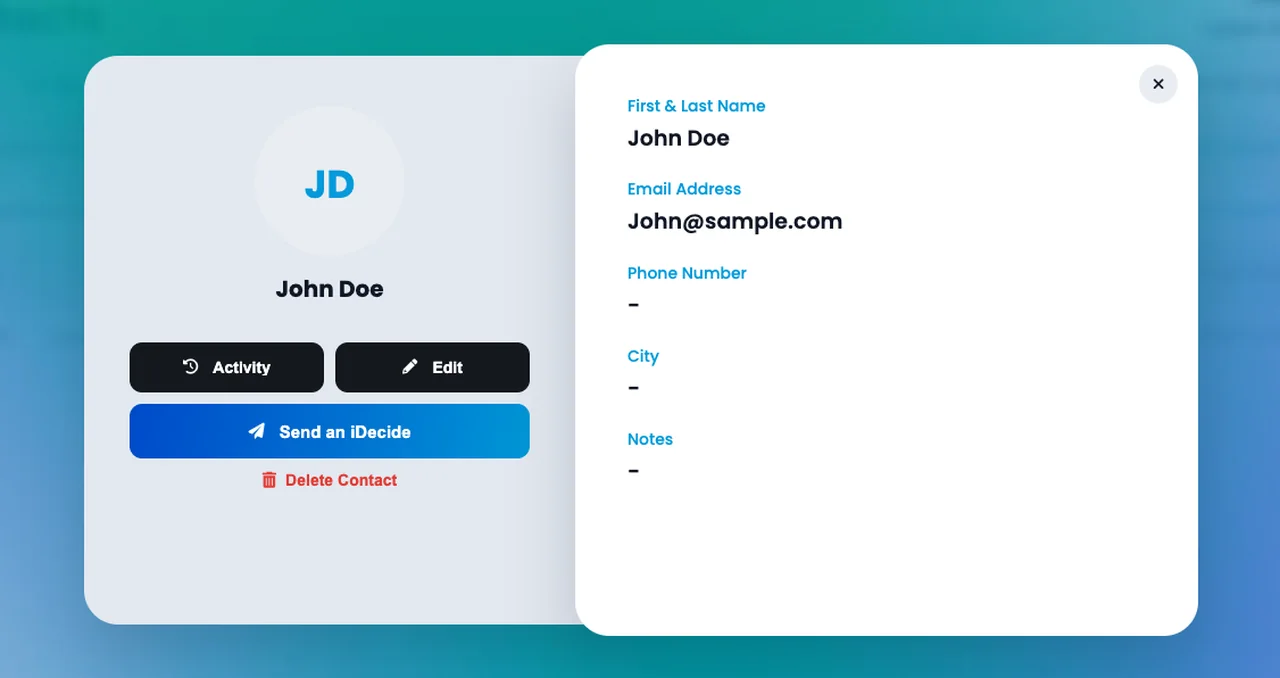
TO Open a profile: #
- Click Contacts.
- Click the contact’s name to open their profile.
From the profile you can: #
Four things live on every contact profile:
Activity
Everything that has happened between you, day by day.
Edit
Update any of their details.
Send an iDecide
Create a personalized link for them, with their name automatically added to the presentation.
Delete Contact
Remove them from your contacts and deactivate any links you've created for them.
To edit their details: #
- Click Edit.
- Update any field: First & Last Name, Email Address, Phone Number, City, State/Province, or Notes.
- Click Save.
Careful with delete: deleting a contact also deactivates every link you have created for them. Anyone you already sent to will no longer be able to open it. There is no undo, so delete only when you are sure.
When changing a name: changing a contact’s name does not update links you already created for them. Existing links will continue showing the old name, while new links will use the updated name.
Want the full timeline of what a contact watched? See Viewing Contact Activity.
