
You can send different follow-ups to different people automatically based on their choices while watching an iDecide. Someone who told you they are a licensed financial consultant should not get the same email as someone starting from scratch.
The shape of it #
There are a ton of different ways to set up your GoHighLevel workflows. We prefer to set up one automation to capture the viewers' choices and update contact fields in their profile, and a second to follow-up based on those choices. Fill in the contact fields with a workflow like the one in Example: Capturing Viewer Choices in GoHighLevel, add a tag such as "ready for follow-up" at the end of it, then start this second workflow triggered from that tag.
If/Else Branching Based on Custom Contact Fields #
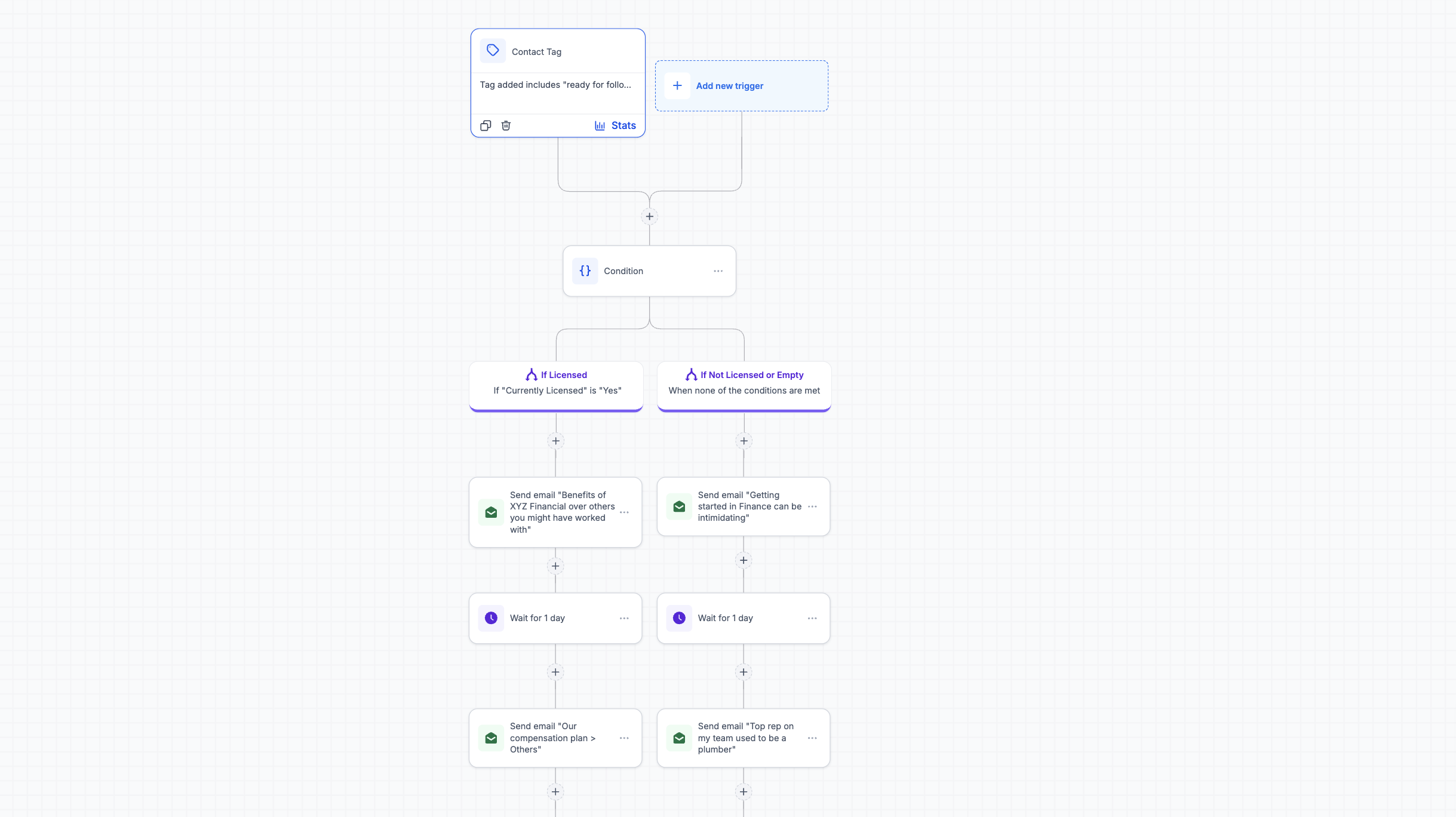
- Create a workflow with the trigger Contact Tag Added, set to your "ready for follow-up" tag from the Capture Viewer Choice automation.
- Add an If/Else condition based on the Custom Contact Fields you filled in from the prior automation.
- Build a branch for each answer.
- Add Send Email and Wait actions to each path to build out your follow up sequence.
2-Tiered example using more than 1 choice #
You can get even more personalized by basing the follow-up sequence on more than one choice in the presentation. In this example, we use if they are currently a licensed financial professional and how they are motivated. You'll see that each person gets a more personalized version of the follow up email.
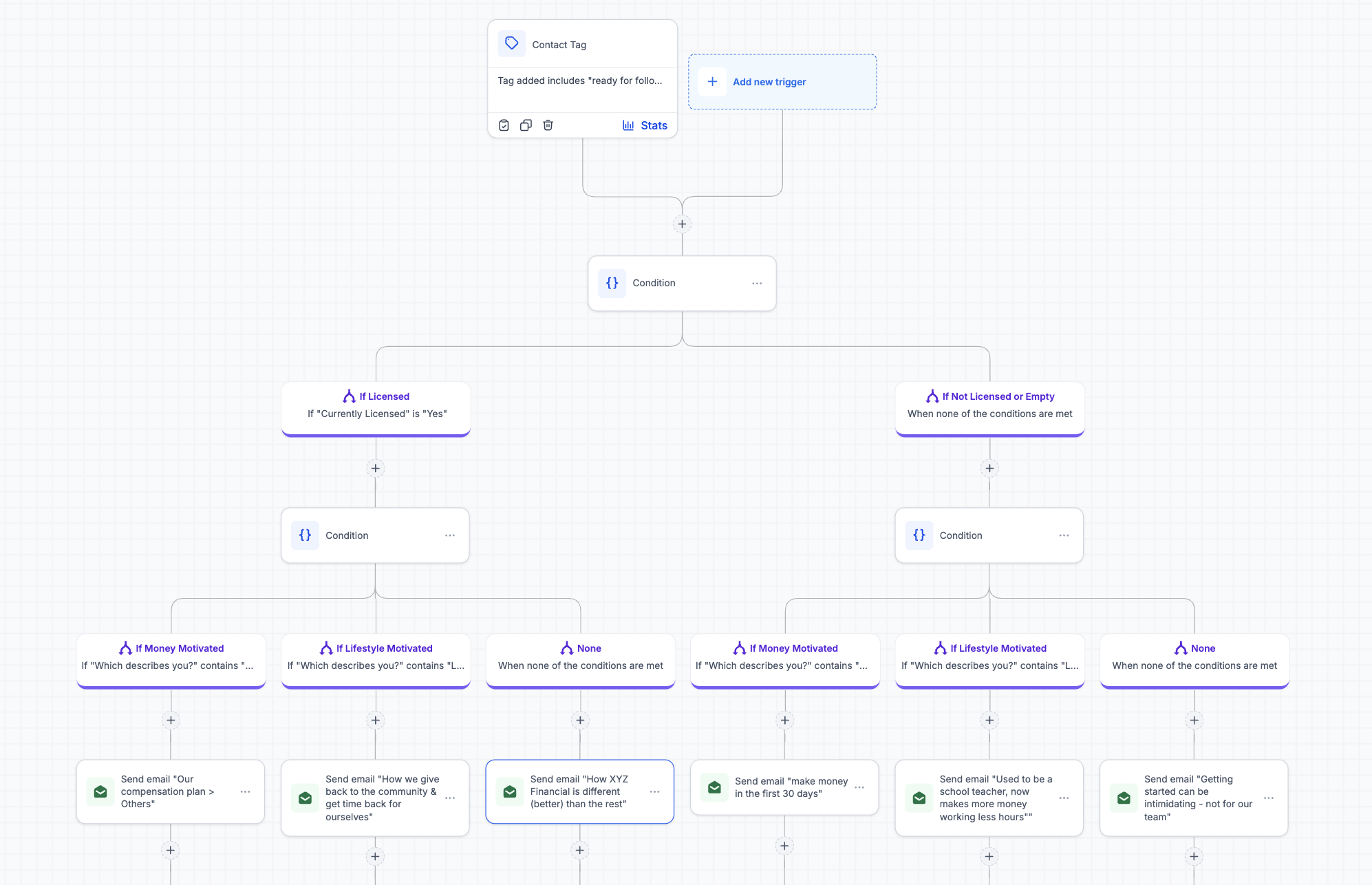
Licensed, money motivated
They already have the experience. The message is that they can start earning with a better company right away.
Not licensed, money motivated
Lead with the earning potential and how quickly they can get licensed.
Licensed, lifestyle motivated
They already have the experience. The message is time freedom and what the system gives back to them.
Not licensed, lifestyle motivated
Lead with what the work makes possible, then explain how to begin.
Six paths from two questions. The follow-up now speaks to what they said rather than simply noting that they watched something.
Branching without storing the answer first #
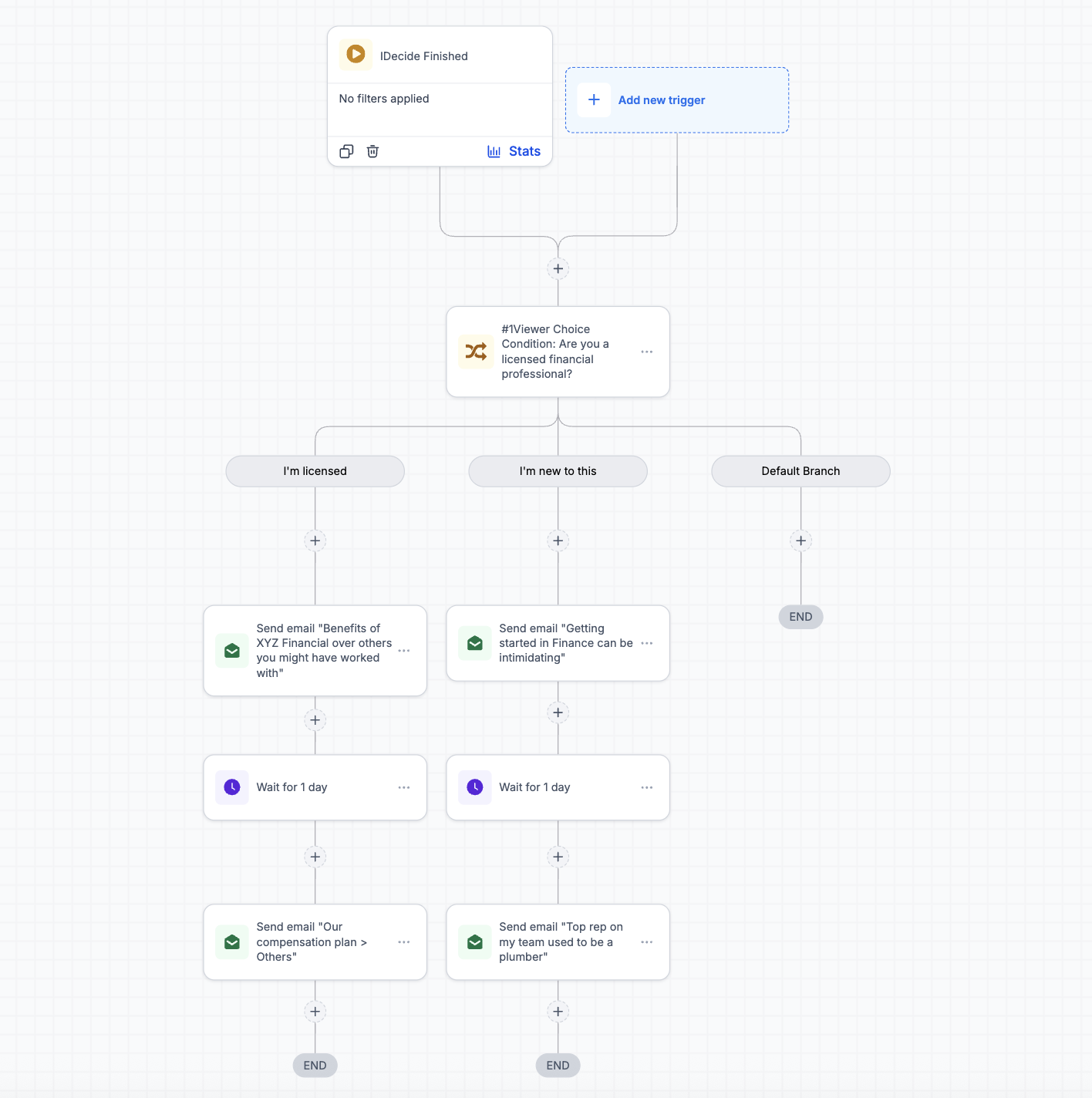
You can also branch directly on a choice using the Viewer Choice Condition action. Set the session ID to the one from the iDecide Finished trigger, pick the question, and give each branch a Selection Name that matches one of the answer options. For questions where the viewer can select all that apply, use Multiple Choice Option Selected instead.
Tip: Do not try to build the whole tree on day one. Start with one condition with two paths and get it live. A follow-up that names one thing the person actually said beats an elaborate tree you never finish.
Reference: What iDecide Sends to GoHighLevel
