What are Slide Tempates?
Slide templates are pre-designed slides you can use to build your presentation faster. They include professionally styled layouts, colors, fonts, and graphics—so you don’t have to start from scratch.
To make presentation building easy, myiDecide includes the following template types.
- Intros*
- Closes*
- Menus
- Text
- Button Interactions
- Sliders
- Logo Reveals
- Other Cool Stuff (Literally!)
- AND MUCH MORE
Just pick a template, drop in your text and images, and customize it to match your brand in minutes.
*Our software will automatically add an Intro slide to your presentation. Your presentation must start with an “Intro” slide and have a “Closing” slide at the very end.
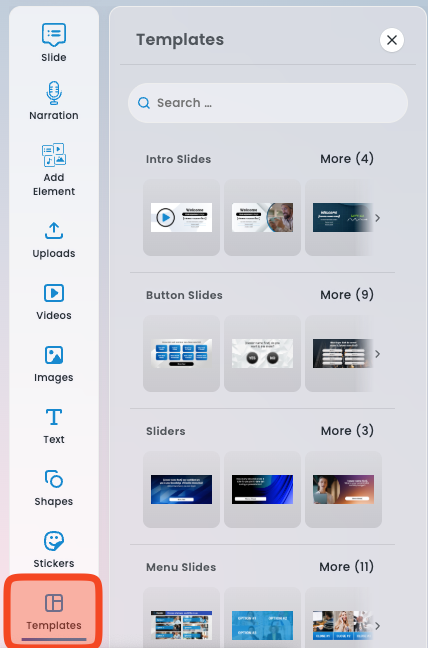
We’ll briefly go over the slide types you can use to bring your presentation to life. Some slide types may convey your ideas better than others, but we’ll help guide you on when to use each slide type and tricks we’ve created to use slide types in creative ways. So let’s get started!

Intro Slides #
Like every great essay or presentation, you will need an introduction. You MUST start your presentation with an Intro Slide on your timeline- All other slides will be greyed out until you add an Intro Slide. This is the welcome screen your viewers will see when they first click on your presentation link.
Pro Tip: To capture their attention we highly recommend putting their name on the screen using the Add Personalization Button on the slide editor screen.
Button Slides
Button Slides are a great way to keep engagement levels high by asking them to interact with their screen. You can ask probing questions to get your audience thinking about the problem your product or service solves, answer yes or no questions, or if they’d like to skip a section to move on!
What are Button Actions?
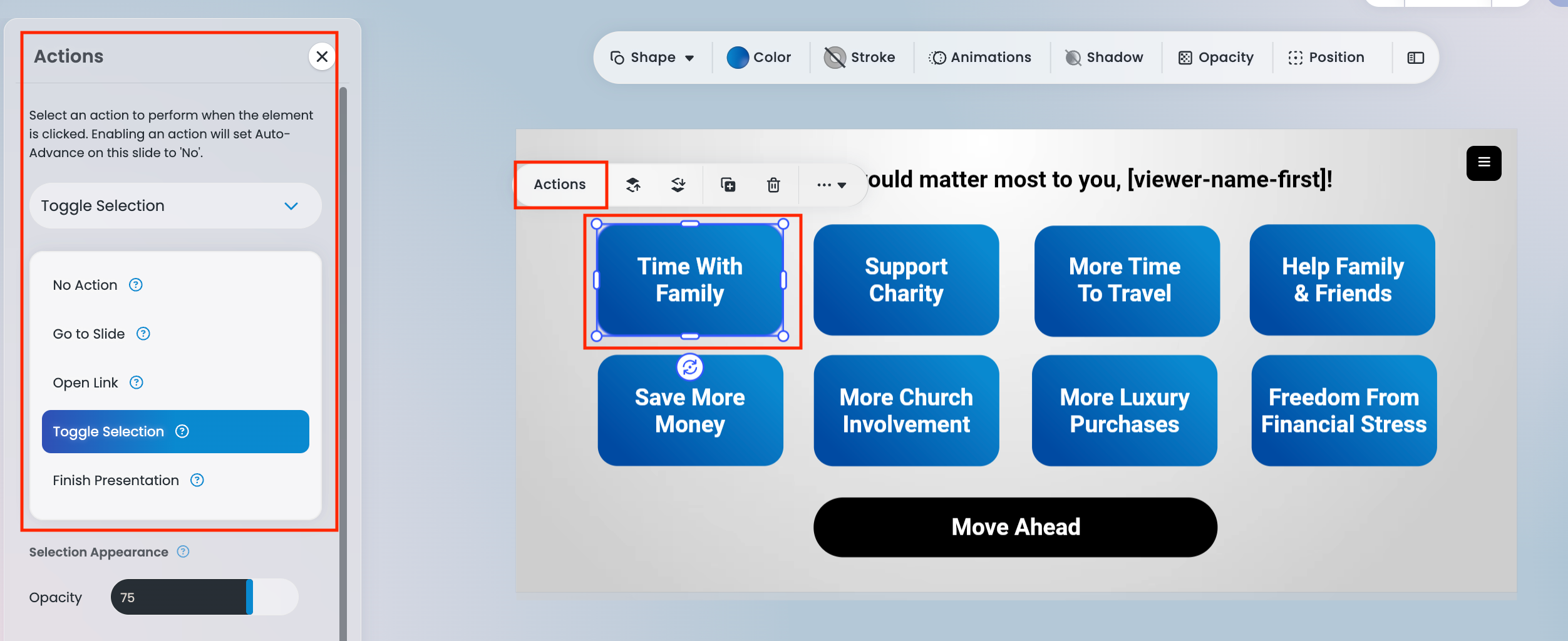
Button Actions determine what happens when the viewer clicks a button. This allows you to make your presentation reactive to wrong answers, or let the viewer choose what they want to see. Each button will have an Actions menu with the following Action options:
-
No Action: Clicking the button will not trigger any action.
-
Go to Slide: Choose which slide the presentation should advance to when the button is clicked.
-
Open Link: Enter the URL you want viewers to be directed to.
-
Toggle Selection: Allows the button to toggle on and off. When enabled, you can adjust the button’s opacity and brightness.
-
Finish Presentation: Ends the presentation for the viewer. When selected, you can set the Final Outcome Title, Final Outcome Notification, and choose a Final Action (such as opening a link or navigating to a Thank You slide).
Cool Tips about Button Slides
- When editing a button slide, delete the button text and insert an image with logo(s) or product pictures embedded. We recommend using a 3rd party software such as Adobe Photoshop. You can use our image editor to adjust your image size and placement.
Interactive Sliders #
Our Interactive Slider slides let the viewer drag the button to their choice, then click to move ahead. You can choose between 3, 5, and 7 ticks on the slider, all of which you can add custom text to.
Great question examples to use here are:
“How much would your income need to grow to have the lifestyle you want?”
“What percentage of human pollution contributes to global warming?”
“How many people do you think you can bring onto your team?”

Menu Slides #
Menu Slides are often the most complex slide type because they act as the “nexus” of your presentation. Think of them as a fork in the road, giving viewers the ability to choose where they want to go and what content they want to explore. The goal is to provide enough options so viewers can focus on what interests them most, helping maintain engagement and avoid unnecessary content — just be careful not to overwhelm them with too many choices.
Like all other slide types, the text and imagery on a Menu Slide can be fully edited. Menu Slides also function the same way as Button Slides.
Important Note:
Be sure to guide your audience back to the Menu Slide by setting the final slide of each section to return to the Menu using the Next Slide or Button Action fields. This will automatically send viewers back to the Menu after they finish a section, allowing them to select another topic to explore.

Text Slides #
Text slides are a great way to add emphasis and inflection to your presentation. When paired with a voiceover, they help capture attention and add meaning to your message. By placing keywords and phrases on screen, you naturally highlight your most important points and reinforce what viewers are hearing. Pair your text with powerful background imagery to give your presentation an extra “oomph” and make your message even more memorable.
Example Voiceover: “Global warming is devastating Communities and ravaging food supply.” Rather than typing the entire sentence on screen, we can emphasize “Devastating Communities.”

Other Cool Stuff #

Timeline Slide
Having a Timeline Slide is a great way to tell your audience the order of events or explain a step by step process of your company. This slide cannot be timed but instead will play for the length of the narration. So if you’d like to give your viewer time to read, we recommend letting the narration record in silence after you’ve said your line!
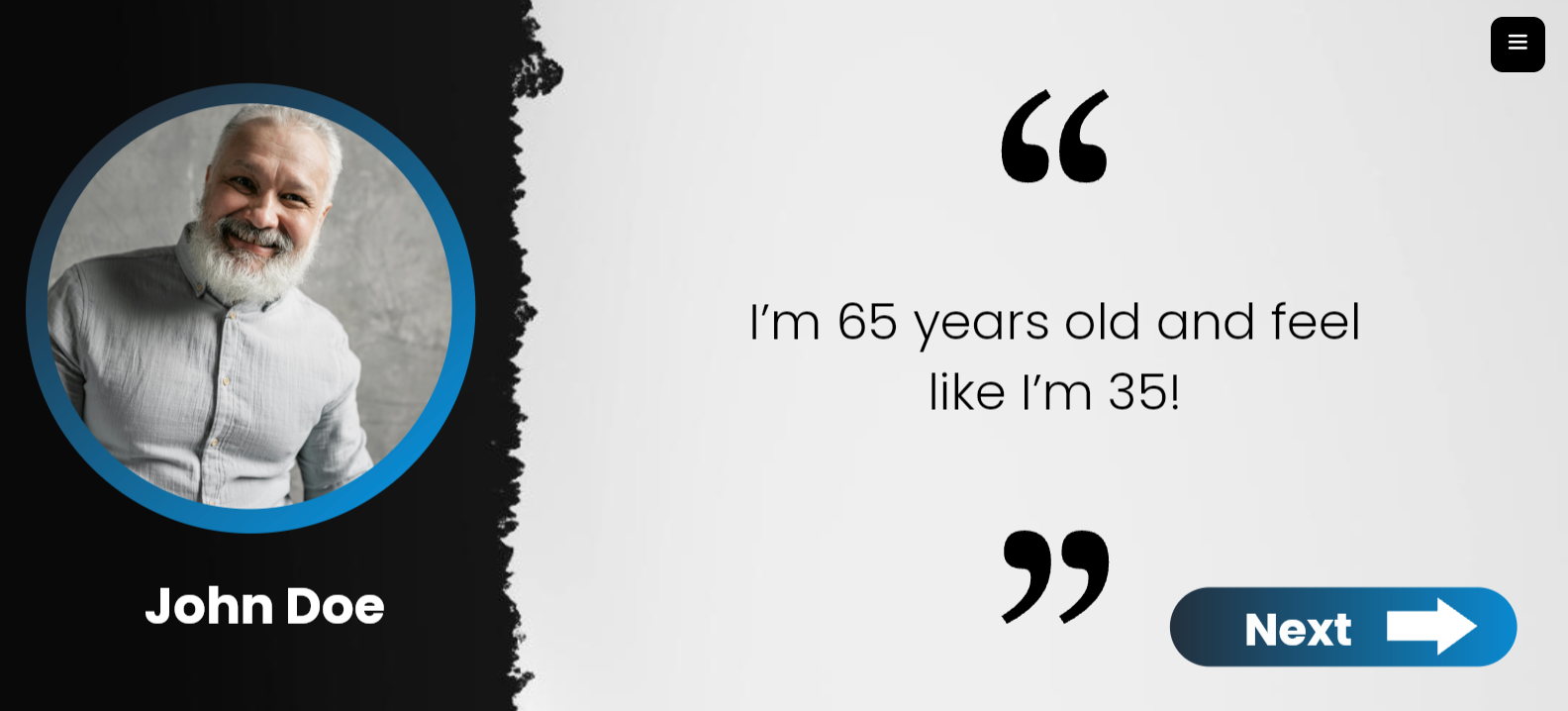
Testimonial Slide
There’s nothing more powerful than social proof, and Testimonial Slides allow you to highlight real stories, real results, and real enthusiasm from the people you’ve helped. Use them to build credibility, establish trust, and reinforce why your offer stands out. Whether it’s a quick quote, a compelling success story, or a powerful transformation, Testimonial Slides help your prospects see themselves in your satisfied customers — making your message even more impactful.
Quick Tip- Adding testimonial videos to your presentation template can be even more compelling than onscreen words alone.
Closing Slides #
Congratulations, you’re at the home stretch! Every presentation must end with at least one closing slide, but you can add multiple if you’d like! Each option will text or email the sender a notification when the viewer reaches that point so you know when and how to follow up.
We currently have 3 types of closings:
1.) Call to Action
2.) Thank you
3.) Contact Form
Pro Tip: We recommend adding a 3 Button Slide w/ Header followed by add all 3 Closing options to make a Closing fork! Select the Button Targets on the 3 Button Slide to each closing option so the viewer can choose how they want to move forward.

Call to Action
What is a call to action? It’s the moment you tell your audience exactly what to do after finishing your presentation — whether that’s Acquista ora, Schedule a Call, or Get Started.
Our Call to Action slide places a clear, clickable button on the screen that sends viewers directly to the URL of your choice. Beneath the button, you can add customized thank-you text along with the sender’s contact information for a personal touch.
This makes it easy for your audience to take the next step immediately, without needing to search for your website or wonder what to do next.

Contact Form
It’s exactly as it sounds!
the Contact Form slide is simply a way for your viewer to fill in their contact information with the best time to reach them, no more back and forth trying to get ahold of them! You get notified with their name, phone number, email address, and the preferred date and time that’s best to contact them!

Thank You
Much like any kind of presentation or meeting, it’s important to thank your audience for their time! A sincere appreciation will give your audience a feeling of importance, a feeling that you are very aware that their time is precious. This slide doesn’t have an interaction and is often used if the viewer chooses that they’re not interested at this time.

 Italiano
  English
  Français
  Deutsch
  Español de México
  ไทย
ไทย  简体中文
简体中文  繁體中文
繁體中文  香港中文
香港中文  Čeština
  Русский
  한국어
한국어  日本語
日本語  Türkçe
  Română
  Português
  Dansk
Dansk  Magyar
  Norsk bokmål
  Polski
  Svenska
  हिन्दी
  Tagalog