Editing Your Slides #
Welcome to the fun part! In this article we’ll go over the slide types available to choose from, how to add them to your timeline, and how to edit them. Our slide categories are an ever growing catalog of animations for you to relay your message while staying fun and engaging! Our animations and interactions are split into the following categories: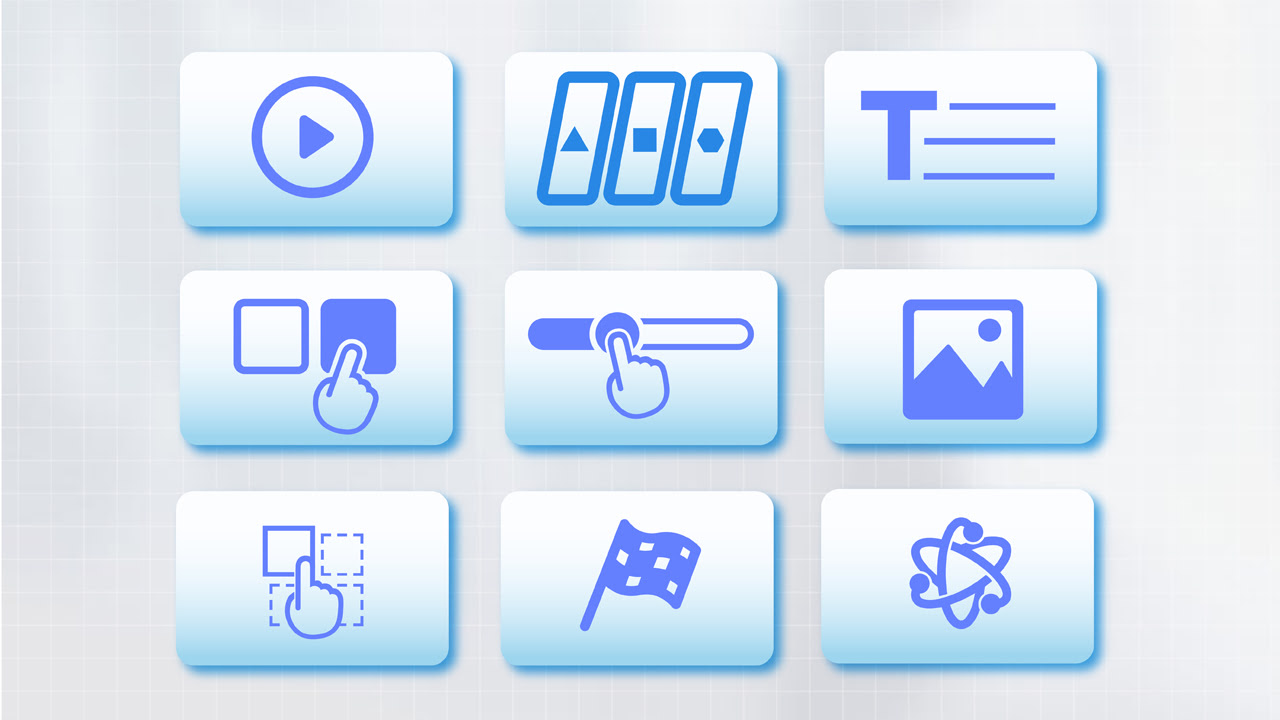
- Intros
- Menus
- Text
- Button Interactions
- Sliders
- Images
- Logo Reveals
- Closes
- Other Cool Stuff (Literally!)
How do I add slides to my Timeline? #
myiDecide is our Drag-N-Drop presentation tool. Simply select the slide category you'd like to add, choose an animation, then drag it onto your timeline. You can also click the slide and it will automatically be placed at the end of your timeline.Important note: Your presentation must start with an “Intro” slide and finish “closing” slide.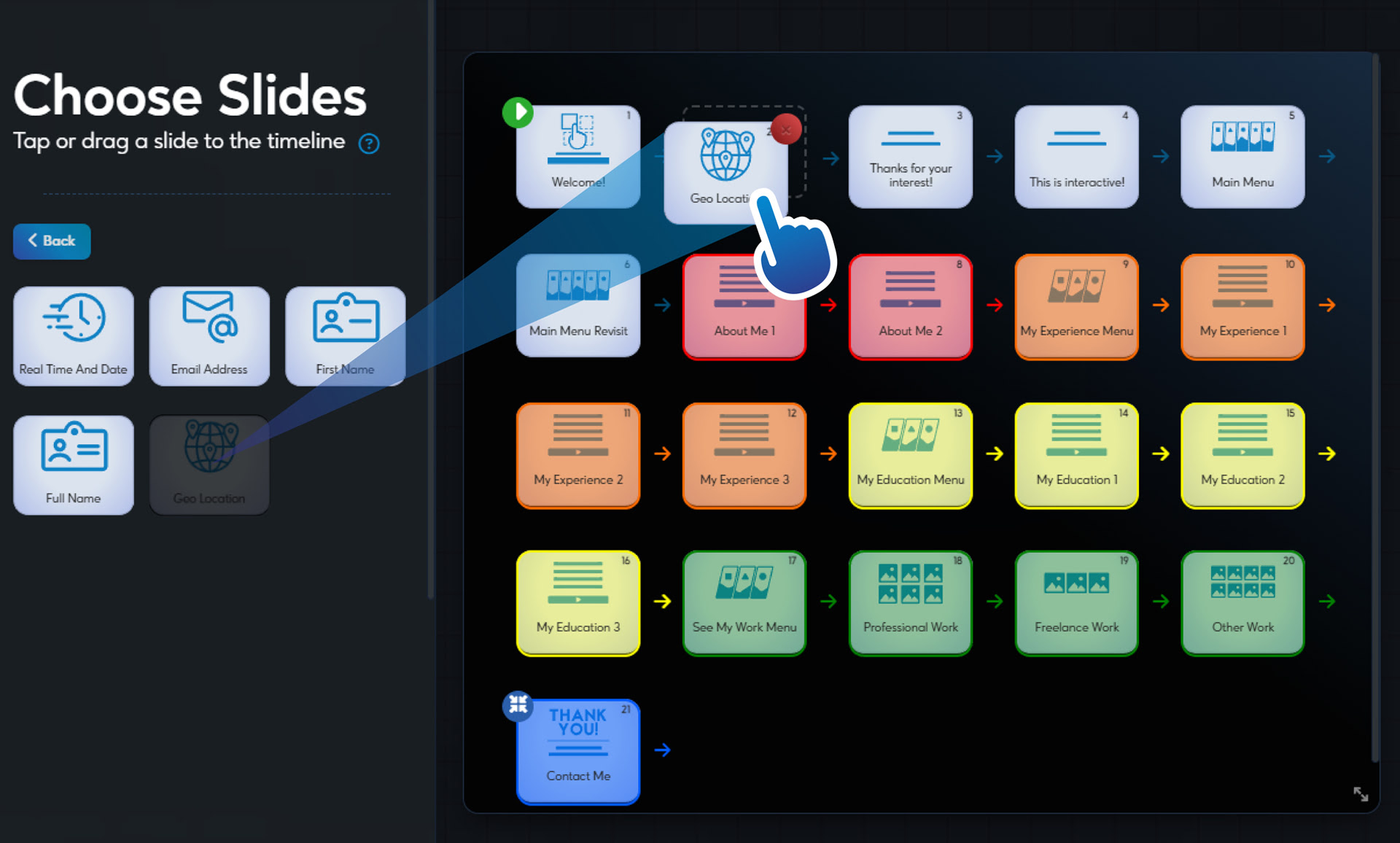
How do I use the Slide Editor? #
Each slide category will have unique edit fields depending on the customizable aspects of that specific slide. However, when editing any slide, you will see common buttons and fields that we'll go over in this section. The Edit Slide screen consists of: 1.) Slide Number 2.) Slide iDeas 3.) the Customization Panel 4.) Slide Title 5.) Edit Fields 6.) Slide Preview 7.) Narration Notes 8.) Back & Next Buttons 9.) Save Button 10.) Feedback Widget (Tell us what you think!)Slide Number #
This shows you which slide you're currently editing and the total number of slides added on your timeline.
Slide iDeas #
Here we tell you best practices for the slide you're editing based on it's slide category, and any tips or tricks we have to guide you! To collapse the thought bubble click anywhere on the bubble and to expand it again click the lightbulb icon.
Customization Panel #
This will be where you edit any customizable fields on your slide. This panel may feel overwhelming at first glance if a slide has a lot of editable parts. But don't worry, it's easier than you'd think when you break it into pieces. To help you stay organized, you can collapse and expand each aspect of the slide by clicking the blue arrow on the right. We'll teach you how to edit each field in the following sections of this article!
Slide Title #
By default, each slide is titles with the animation description but this is customizable. The slide titles will be displayed on your timeline, on the Edit Slide dropdown of the navigation bar, and on Next Slide and Button Target selections. We highly recommend naming each slide so you can easily identify it during these steps.
Edit Fields #
Each part of the slide that allows you to add customization will be grouped together in the customization panel. When you expand the section for the part of the slide you'd like to edit, you'll see a variety of different Edit Fields. Here's how to use all the field:
Toggle Font Editor: The (A) button next to the Add Personalization Button will expand or collapse the Edit Field to show the font options for that particular line.
Note: Editing the font for one line will not edit the whole slide. You'll need to edit the font for each line individually.

Font Family: We offer a wide range on fonts so you're bound to find your favorite!
Font Size: You can adjust the size of the font by dragging the bar left (smaller) or right (larger).

Modify Font Placement: You can move the text on screen by sliding the top bar to adjust horizontally, and the bottom bar to move it up (right) or down (left).

Font Color: You can customize the color by selecting a listed color or by entering the color code that coincides with your branding guidelines.


Slide Preview #
Here you can preview the slide as you edit. The onscreen text, font, and background images will update in real time. You can restart and play the enter and exit animations using the arrows below the preview screen.
Narration Notes #
You can type notes or voiceover script in the box below the preview screen, which will show later during the narration step. Your viewer will never see what you type here, they're just notes to yourself that you can reference when recording your voiceover.
 Polski
  English
  Français
  Deutsch
  Italiano
  Español de México
  ไทย
ไทย  简体中文
简体中文  繁體中文
繁體中文  香港中文
香港中文  Čeština
  Русский
  한국어
한국어  日本語
日本語  Türkçe
  Română
  Português
  Dansk
Dansk  Magyar
  Norsk bokmål
  Svenska
  हिन्दी
  Tagalog