Congratulations! You're at the final stages of completing your presentation!
Reviewing Your Presentation #
In the review stage you’ll be able to watch and interact with your presentation just like your viewers will. This is an important part of the building process because it's where you can catch and fix any errors or mishaps you may have missed. A common mistake that's often caught at this stage is that your slides or buttons don't navigating to where you intended.Example 1: Your Main Menu button doesn't lead to the correct section.Example 2: You forgot to point the last slide of a section back to the Main Menu so it's going straight to the next section.How do I use the Review screen? #
This screen is designed to help you easily go through your presentation with a "fine tooth comb." Simply click Review in the Navigation Bar.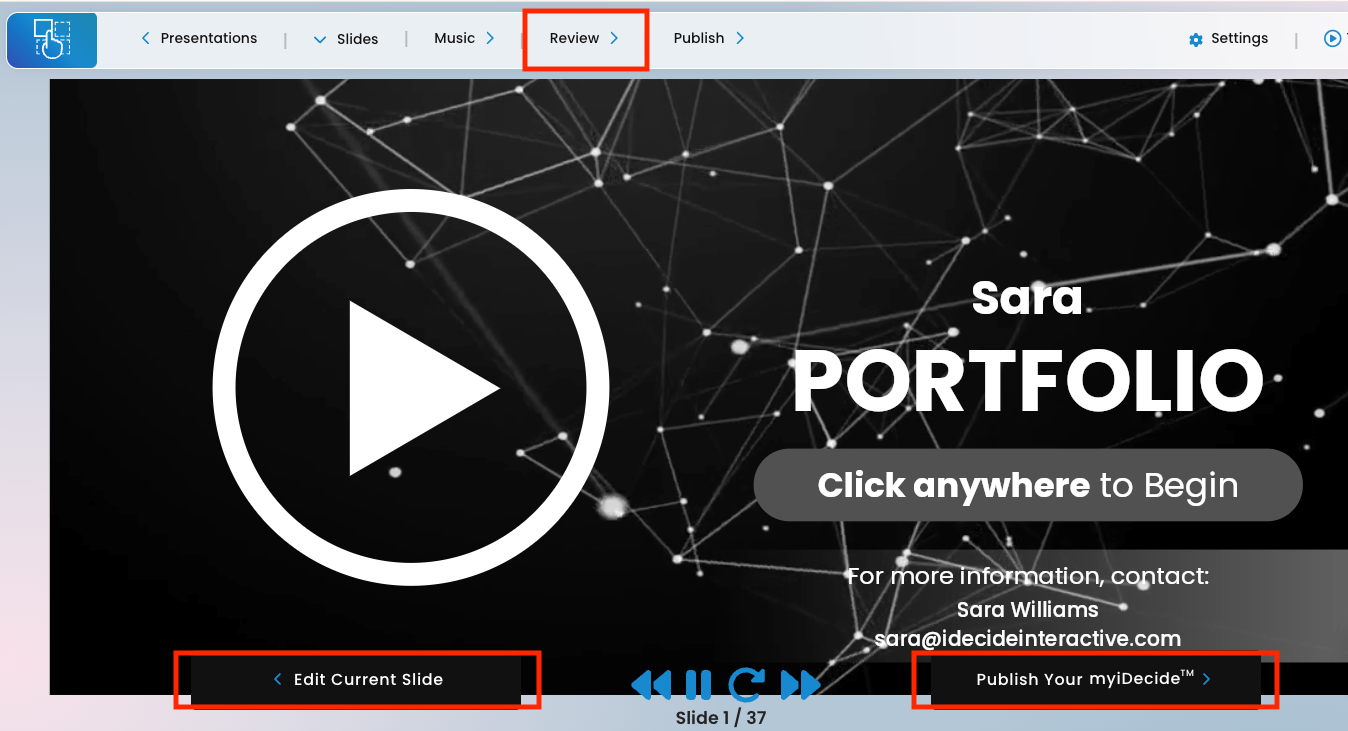
On the Review screen, you'll see the preview window, where you'll be able to watch and interact with your presentation just as your viewer will. You can make this bigger by clicking the magnifying glass in the upper-right-hand corner of that screen.
Below the preview screen are controls to navigate through the presentation quickly. The forward and back arrows skip to the next or previous slide on the timeline (note: this will be in the linear order of the timeline, regardless of slide destinations or button targets). The pause button stops the presentation on the current slide, and the curved arrow restarts the presentation from the Intro Slide.
 Pro Tip: Use these buttons after you leave the review screen to make edits so you can skip ahead instead of watching the full presentation each time.
At the bottom you'll see the "Publish Your myiDecide" button to move onto the final step, or the "Edit Current Slide" so you can easily make any changes you catch during your review.
Pro Tip: Use these buttons after you leave the review screen to make edits so you can skip ahead instead of watching the full presentation each time.
At the bottom you'll see the "Publish Your myiDecide" button to move onto the final step, or the "Edit Current Slide" so you can easily make any changes you catch during your review.
Pro Tip: Use these buttons after you leave the review screen to make edits so you can skip ahead instead of watching the full presentation each time.
At the bottom you'll see the "Publish Your myiDecide" button to move onto the final step, or the "Edit Current Slide" so you can easily make any changes you catch during your review.
Can I make edits after I leave the review step? #
We get it — the first myiDecide is always the hardest. We actually recommend making edits after you publish your myiDecide. Get feedback from prospects and make updates to increase close rates! You are allowed to make edits and republish your myiDecide as many times as you'd like, at any time you'd like! And when you do edit your content after publishing, any links you've sent will automatically be updated in real time! We know, that's cool!
Publishing Your Presentation #
After clicking the "Publish Your myiDecide" button on the Review step, you'll see a success screen that looks like this: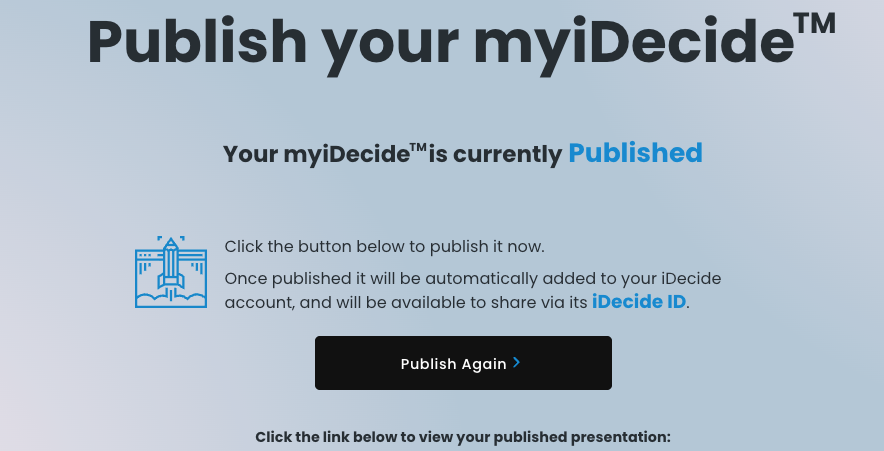
Your iDecide ID #
You may have heard the term “iDecide ID” before, but if not, an iDecide ID is a unique shareable "code" that allows other iDecide Subscribers to add your presentation to their account if you'd like... without having to pay for a presentation build! Helpful note: If you forgot to copy your iDecide ID from the publish screen, you can find it on your myiDecide presentations list (click the iDecide logo in the top left corner of your navigation bar).How do I add my presentation to my account? #
Once you publish your presentation, it is automatically added to your iDecide Back Office! There's no need to add your own iDecide ID to your account. Simply click the Back-Office quicklink or login through our website to begin sending!How can other iDecide users send my myiDecide presention I created? #
If your contact already has an iDecide Account, you can give them your iDecide ID so they can share your story! Important Note: Giving your contact an iDecide ID will NOT give them access to edit the chosen presentation.How to send a presentation? #
After adding your presentation to your account, you’ll want to start sharing it! For sending instructions view our other Knowledge Base articles. Sending in the iDecide Back OfficeSending an iDecideSending in the iDecide Interactive App
Sending an iDecide in the App
 日本語
日本語  English
  Français
  Deutsch
  Italiano
  Español de México
  ไทย
ไทย  简体中文
简体中文  繁體中文
繁體中文  香港中文
香港中文  Čeština
  Русский
  한국어
한국어  Türkçe
  Română
  Português
  Dansk
Dansk  Magyar
  Norsk bokmål
  Polski
  Svenska
  हिन्दी
  Tagalog